
🔧 Smart UI – Create Professional Interfaces in Excel Without Coding
🚀 Turn spreadsheets into intelligent, user-friendly forms
Smart UI is an Excel add-in that lets you build custom forms directly inside your spreadsheets — with buttons, navigation pages, subpages, and fully linked fields.
No coding required. No external systems. Just Excel, smarter.
✅ What can Smart UI do for you?
🧠 Simplifies data entry: turn messy spreadsheets into clean interfaces
🎨 Custom visual design: control fonts, colors, borders, and layout
🔄 Fully dynamic forms: linked to Excel tables with filters and validation
🧩 Multi-page support: organize complex data using main pages and subpages
🖱️ Built-in toolbar: access all Smart UI features from Excel’s ribbon
📦 No installation required if using the spreadsheet version
💼 Who is this for?
Excel professionals seeking better user experience
Freelancers or consultants sharing spreadsheets with clients
Companies who need structured, reliable data entry
Users who want a practical alternative to creating forms manually in Excel
🧱 Two ways to use Smart UI
📦 Add-in (.xlam): installed in Excel for use in all workbooks
📄 Workbook (.xlsm): macro-enabled file with the same features
Both versions offer the same functionality — choose based on your environment.
What’s New in Version 1.0.6
👉 Now Compatible with Excel Tables
Smart UI now fully supports Excel tables (ListObjects) when generating interfaces.
In previous versions, the add-in required data to be arranged in a standard worksheet format. If the data was formatted as a table, various issues could occur — especially with filters and field detection — preventing proper interface generation.
Version 1.0.6 resolves these limitations. The add-in has been updated to correctly identify structured tables, manage filters, and build dynamic forms regardless of whether the data is in a plain range or an Excel table.
This enhancement ensures greater flexibility and reliability when working with modern Excel files, allowing users to take full advantage of table formatting without compromising functionality.


What’s New in Version 1.0.4
📑 Create unlimited subpages linked to a main data table
Organize one-to-many relationships directly within the form:
- Orders → Items, Payments, Deliveries
- Projects → Tasks, Costs, Team Members
- Customers → Contacts, Addresses, Support History
Each tab automatically inherits the key from the main record, ensuring data consistency without formulas. You can also create independent tabs to group multiple reference tables (used in dropdowns, for example) into a single, well-organized form.
🖌️ Change interface style with your own fonts, colors, and borders
The new “Visual Settings” button lets you personalize your forms with just a few clicks:
- Full color palette for backgrounds, text, and highlights
- Choice of fonts and sizes for labels and fields
- Object appearance settings (applied to labels, textboxes, listboxes, and the form itself), including:
- Flat – clean, borderless look
- Raised – elevated elements
- Sunken – recessed style
- Etched – outlined edges
- Bump – double-raised relief
This level of control allows users to tailor the look and feel of their forms to match their brand or personal preferences.
🚀 Revolutionize Data Entry in Excel
Smart UI is a powerful Excel add-in that transforms how you enter data by automatically generating professional input forms — directly from your spreadsheet structure.
With just one click, Smart UI detects your data range and builds a fully functional form, with no setup or configuration required.
It’s fast, intuitive, and works right inside Excel — so you don’t need to switch tools or export data elsewhere.
Work smarter, stay in Excel, and give your spreadsheets a user-friendly interface that anyone can use — no coding needed.
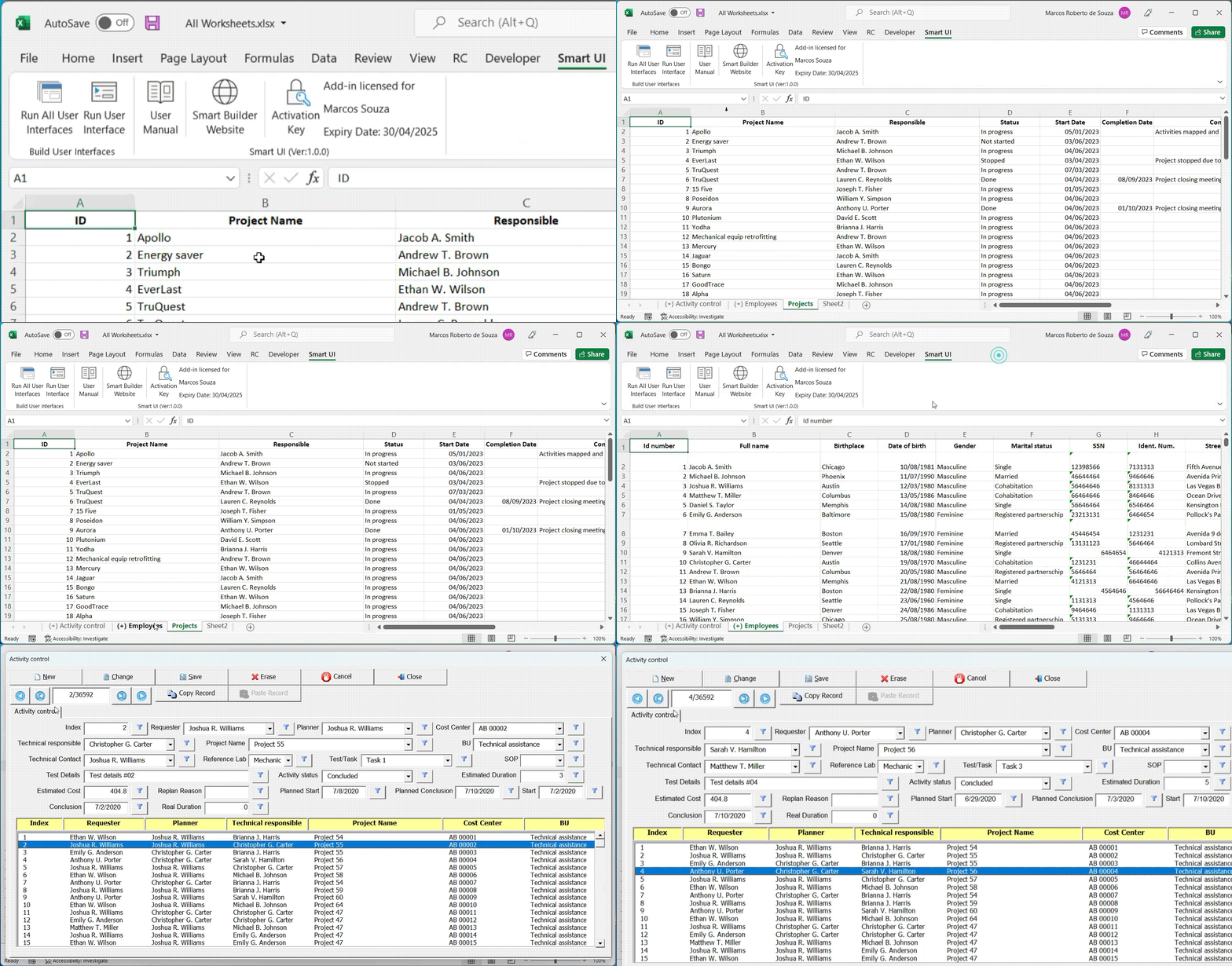
🧩 Simplified and Consistent Data Entry
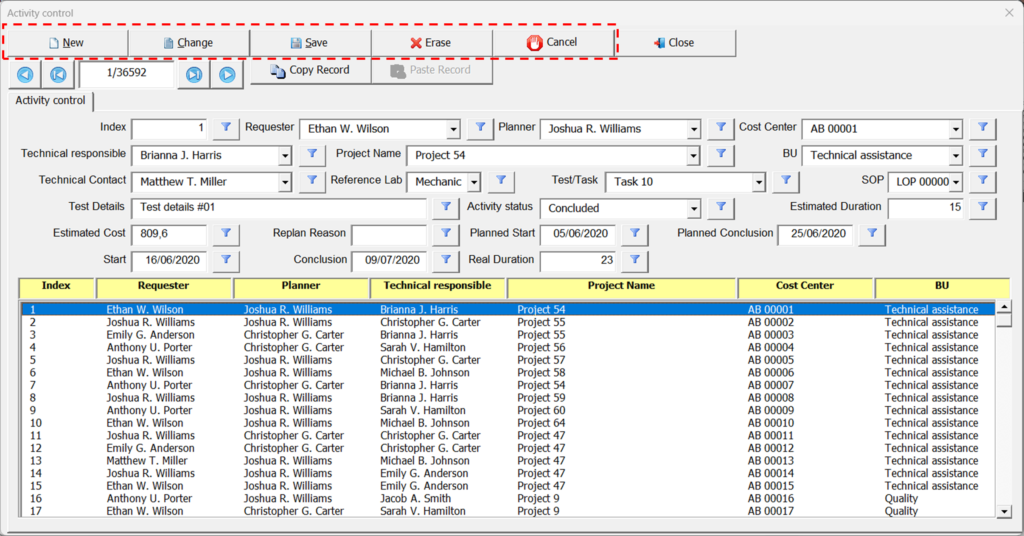
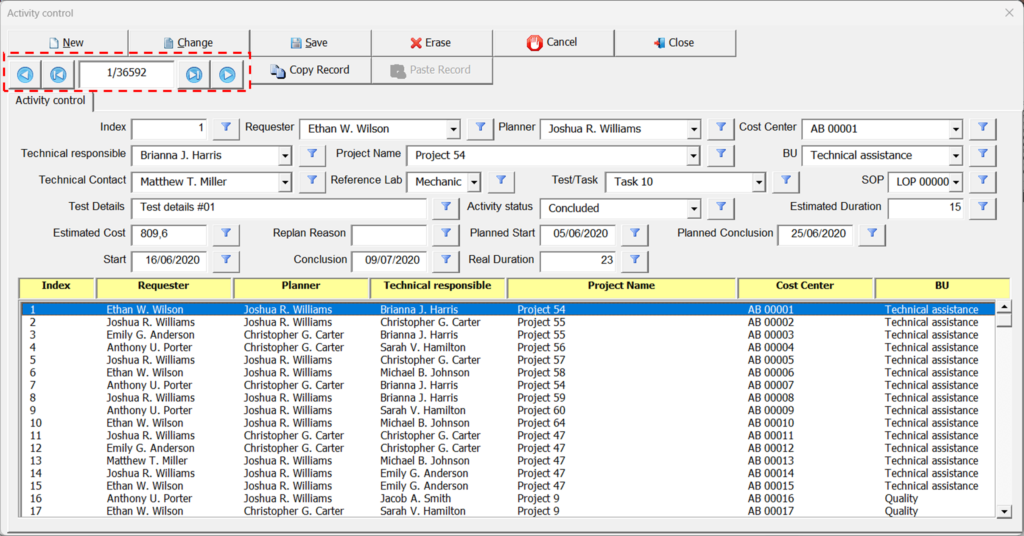
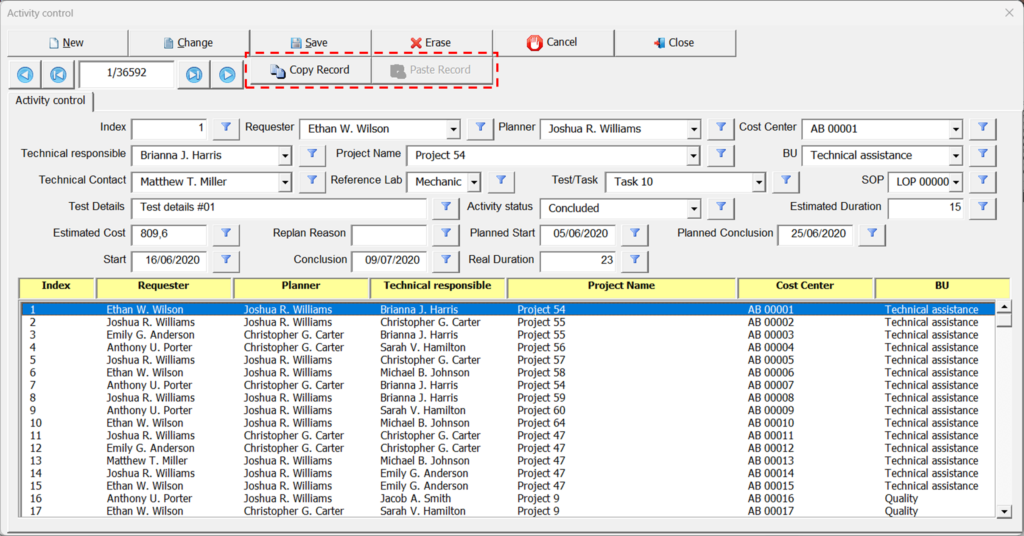
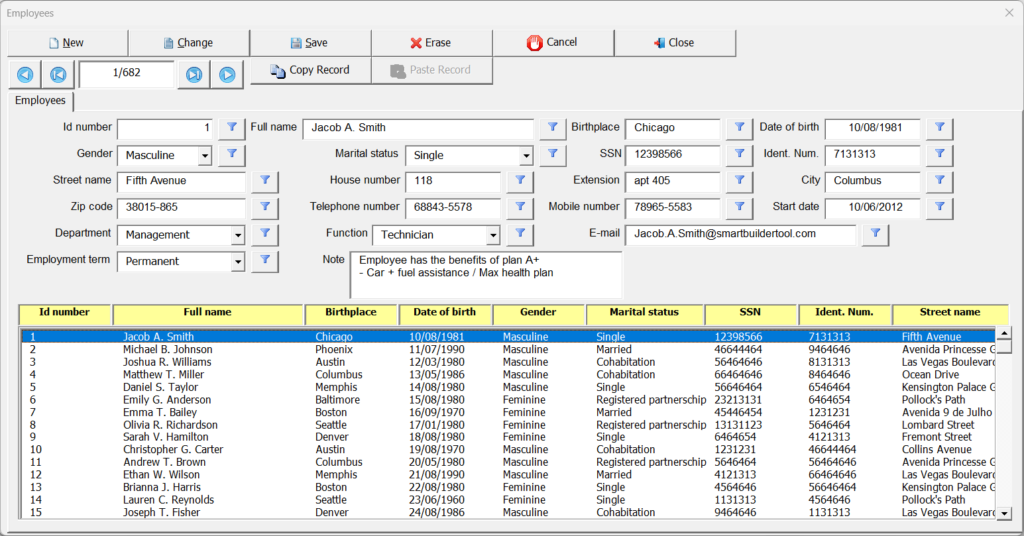
Smart UI generates standardized forms with a clean, intuitive layout — where buttons and fields always appear in familiar, predictable positions. This consistency helps users quickly locate the tools and information they need, with no learning curve.
Each form is designed to display all fields from a record in a single view, eliminating the need to scroll sideways through columns — improving speed and focus.
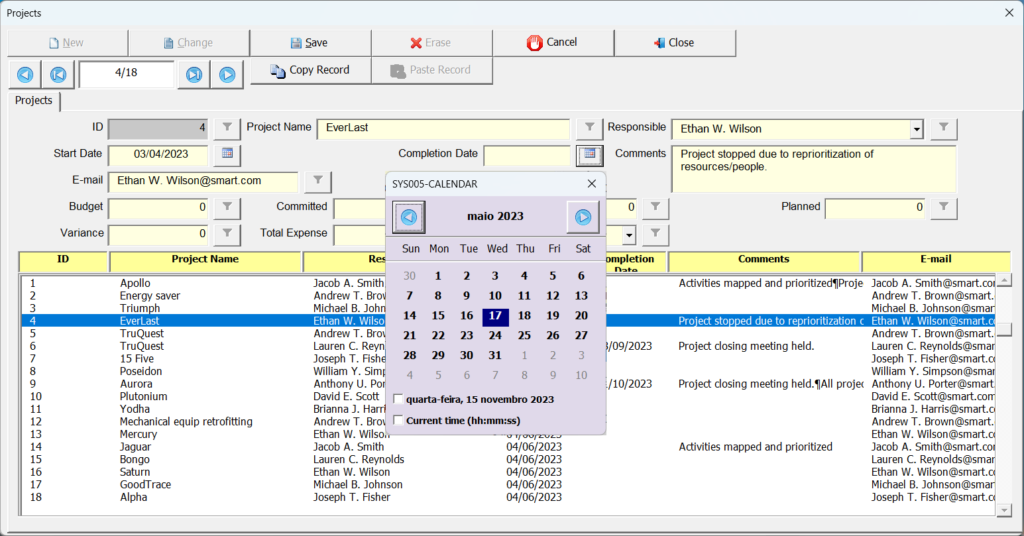
To further streamline the experience, calendar controls simplify date entry and built-in field filters make it easy to search, sort, and edit with precision.
✨ The result: faster, clearer, and more user-friendly data entry — right inside Excel.
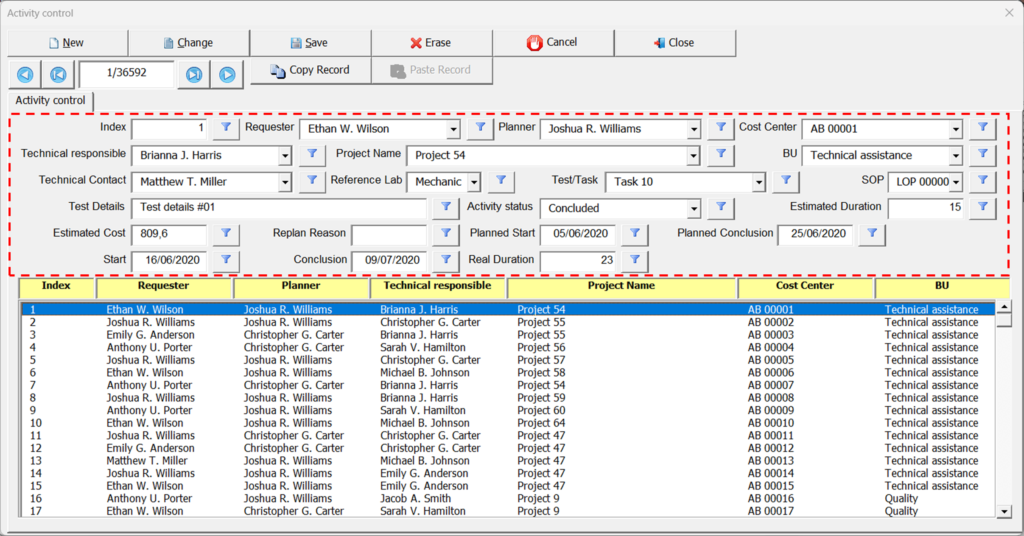
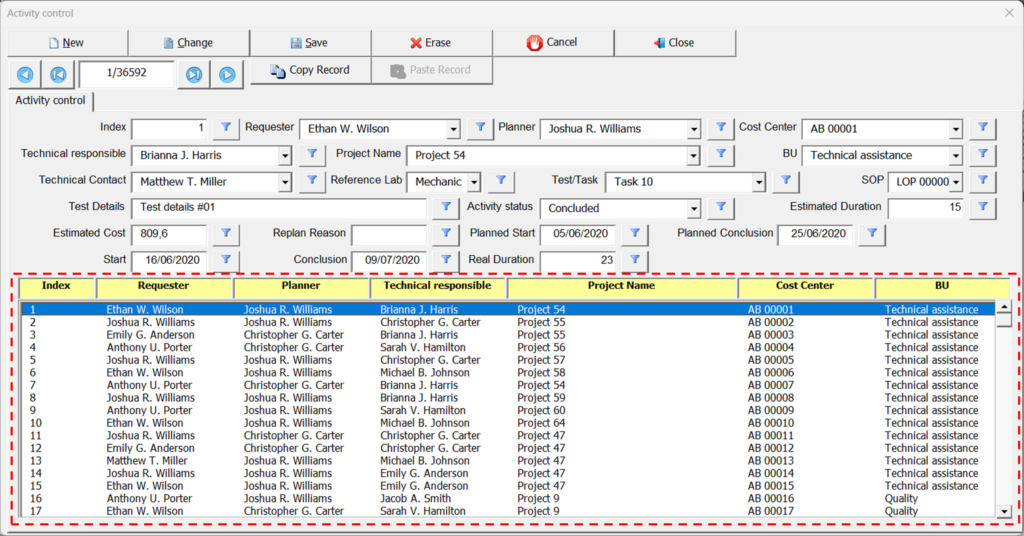
🧭 Manage Multiple Forms from a Single Screen
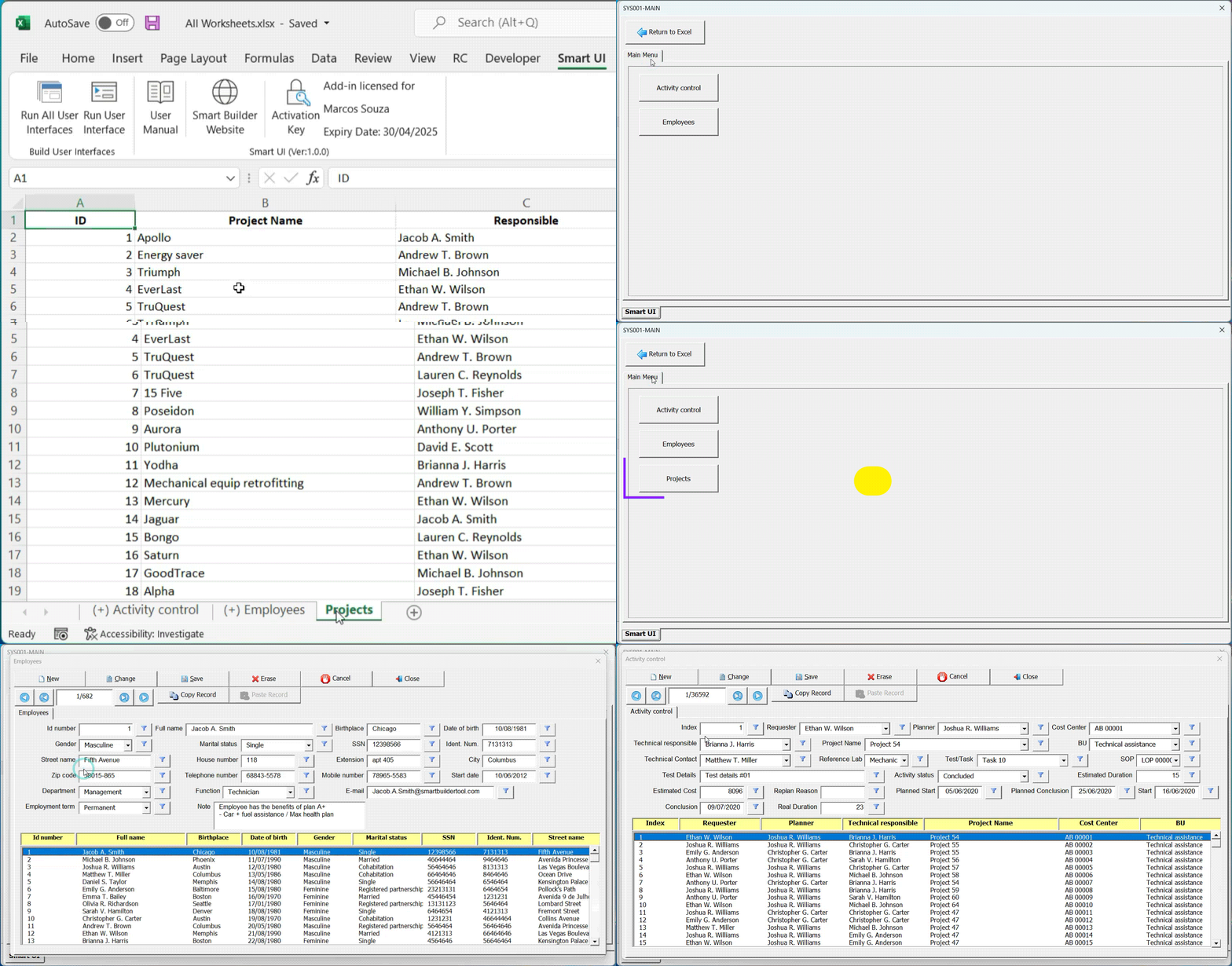
When your workbook includes several worksheets that require their own data entry forms, Smart UI lets you control them all from one central interface.
You can create a main form that displays shortcut buttons — each one opening the corresponding form for a specific worksheet.
To include a worksheet in this main form, simply add (+) at the beginning of its name (e.g., (+)Customers, (+)Orders).
Then, click the Run All User Interfaces button. Smart UI will automatically scan the workbook and add buttons for each worksheet whose name starts with (+).
Ideal for managing related datasets, this feature lets you switch between multiple forms quickly — keeping your workflow smooth and organized.
🎯Why Choose Smart UI?
Smart UI is more than just a tool; it’s a comprehensive solution for efficient data management. By automating the creation of data entry forms and integrating seamlessly into Excel, Smart UI enhances productivity, ensures data accuracy, and provides a cost-effective alternative to traditional data entry tools. Whether you’re managing large datasets or conducting surveys, Smart UI empowers you to handle data with ease and precision.
By leveraging Smart UI, users can transform their data entry processes, making them more efficient, accurate, and user-friendly. This powerful add-in is designed to meet the needs of professionals who rely on Excel for their data management tasks, offering a streamlined and reliable solution for all your data entry needs.
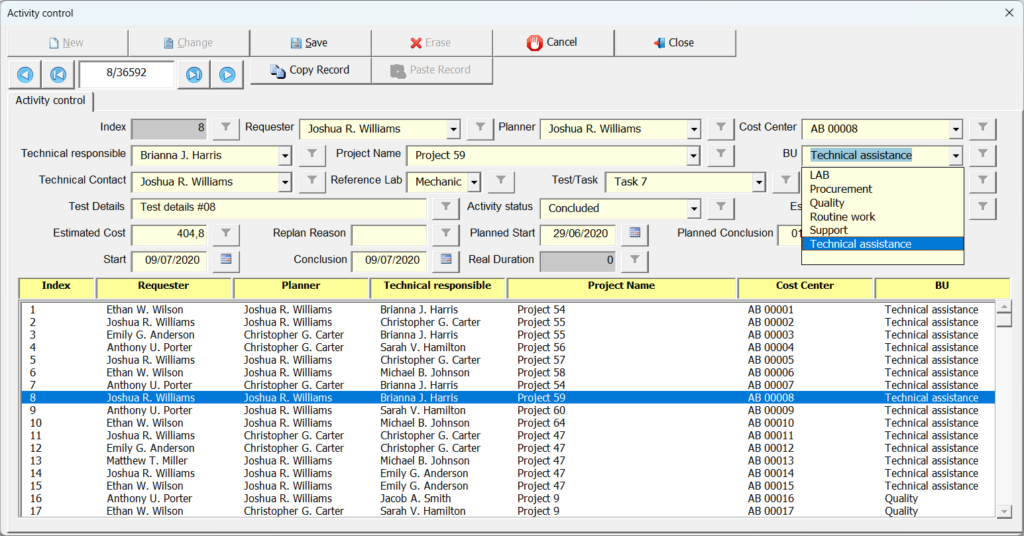
✅ Best Practices for Using Smart UI
Simple tips to ensure smooth operation
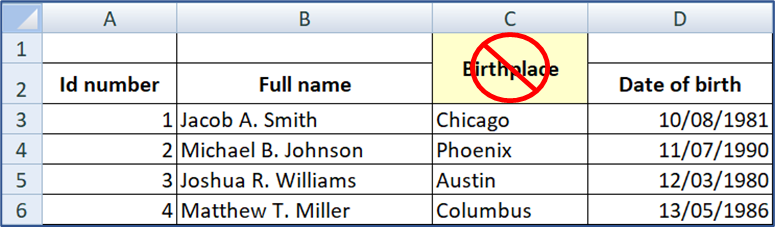
To get the most out of Smart UI and avoid layout issues, it’s best to avoid merged cells in the following areas:
❗ Column header row (first detected data row)
Smart UI begins scanning your sheet from cell A1, identifying the first contiguous block of non-empty cells to define the column headers. This is not necessarily the first row of the spreadsheet, but rather the first detected data row.
If any cells in this row are merged, Smart UI may not correctly recognize the content of those columns. This could result in fields being created with incorrect or missing titles in the data entry form.
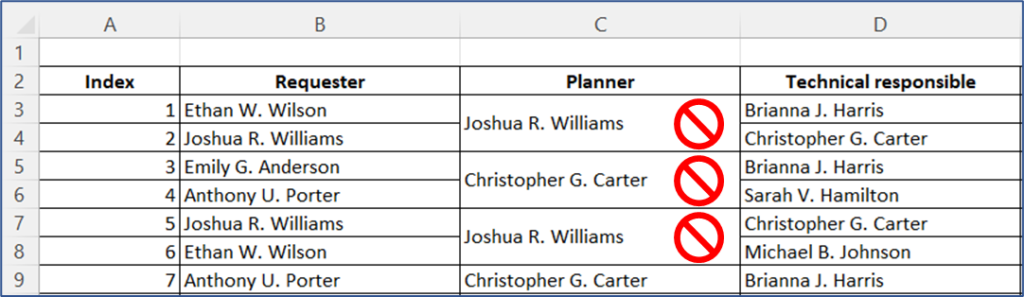
❗ Data region (rows below the header)
While Smart UI processes unmerged data normally, using merged cells in the data rows can lead to unexpected deletions — due to how Excel handles merged ranges.
For example:
If a cell is merged across two rows, and you delete one of those rows, Excel will automatically delete both rows involved in the merge. This is standard Excel behavior, not a bug in Smart UI, but it can lead to data loss if you’re not aware of it.
👉 Recommendation: For reliable and predictable behavior, use unmerged cells in both the column headers and data region.
🎯 Why Use Data Entry Forms in Excel?
Typing data directly into cells — one by one, scrolling endlessly across rows and columns — is slow, tiring, and error-prone.
Smart UI changes that by bringing the power of intuitive, dynamic forms to your spreadsheet.
Here’s how data entry forms — especially with Smart UI — make a difference:
✅ Save Time and Boost Productivity
No more scrolling left, right, up, and down to find the right field. Forms let you enter full records in one clean view — faster, easier, and more efficient.
✅ Better User Experience
Smart UI creates interfaces that are clean, familiar, and user-friendly — ideal for users of all levels.
✅ Fewer Errors
Reduce the risk of entering data in the wrong column or row. Forms guide the user, improving accuracy even in complex datasets.
✅ Built-In Validation
Validation rules ensure that only valid, structured data is submitted — keeping your records clean and consistent.
✅ Focused Viewing
Forms show all fields of a single record in one place, eliminating the need to scroll across wide tables to view or edit your data.
Smart UI leverages all these benefits and brings them into Excel — with zero coding and a ready-to-use interface.
Whether you’re managing business operations, survey results, or customer records, Smart UI lets you work faster, smarter, and with fewer mistakes.
🔄 Two Flexible Ways to Use Smart UI
We’re excited to offer two download options for Smart UI — giving you the same powerful features in the format that best suits your needs:
🧩 Option 1: Smart UI Add-In (.xlam)
✅ Permanent Menu in Excel
Adds a Smart UI tab to the Excel ribbon — always available, no matter which file is open.💼 Best for Frequent Excel Users
Ideal if you use Excel regularly and want Smart UI features ready at all times.
📄 Option 2: Smart UI Worksheet (.xlsm)
🚫 No Installation Needed
Just open the file — no need for admin rights or setup.🏢 Perfect for Companies with Restrictions
Great for environments where installing add-ins is blocked by IT policy.🤝 Easy to Share with Clients
Send a ready-to-use file with Smart UI preloaded — no installation required.📥 Data Import Required
To use Smart UI features, your data must be inside the.xlsmfile.
(This step is not needed when using the add-in.)
✔️ Choose What Works Best for You
Whether you prefer the always-available add-in or the plug-and-play worksheet, both options offer the same intuitive interface and full feature set — so you can enhance your Excel experience your way.
📦 How to Install a Add-in
Installing a Smart Builder Tool add-in is quick and easy — but it’s essential to follow the correct steps.
In this section, you’ll learn how to properly install the Smart UI add-in, including how to extract, unlock, and activate the file inside Excel.
The video on the right demonstrates the process step by step. Although it uses Smart UI as an example, the same procedure applies to all our tools — Smart Gantt, Smart Tools, and Smart Cal.
⚠️ Important: If the add-in is not installed correctly, it won’t work — and you won’t experience the benefits these tools offer.
👉 Take a minute to watch the video carefully and ensure everything is set up the right way.
📘Want to Know More? Access the Manual on-line
Download the Add-in for a free 30-day trial and make sure it meets your needs. If you have any questions, suggestions or complaints, please send us a message.
After the free trial, if you liked it, purchase a license and continue using the Add-in.
⚠️ Attention: How to Unblock the File After Download
After downloading the add-in, Windows may block the file for security reasons.
To ensure it works correctly, follow these steps before opening in Excel:
Open the File Manager (Windows Explorer) and go to the Downloads folder — this is where downloaded files are usually saved.
Locate the downloaded ZIP file (e.g.,
Smart UI.ziporSmart Gantt.zip).Right-click the ZIP file and select Extract All to unzip the contents.
After extracting, find the Excel file inside the unzipped folder (e.g.,
.xlamor.xlsmfile).Right-click the Excel file, choose Properties, and under the General tab, check the box Unblock (if available).
Click Apply, then OK.
✅ Now the file is ready to be opened or installed in Excel.
📌 This step is required for the add-in to work properly. If the file remains blocked, Excel may prevent it from running.

✨ What to Do After Downloading the Add-in?
Once you click the download button, you’ll receive a compressed .zip file.
Follow these simple steps to get started:
📦 Step 1: Unzip the File
After extracting the .zip, you’ll find the following files:
Smart UI – Readme.docx
A quick guide with important instructions for proper installation.Smart UI 2007.xlam
For Excel 2007 or earlier — this is the add-in file.Smart UI 2010+.xlam
For Excel 2010 or later — the most common option for modern systems.Data Entry Forms Examples.xlsx
A sample workbook with ready-to-use forms (e.g., Activities, Employees, Projects). Use it for testing or inspiration.
💡 You may also see Smart UI worksheet versions (
.xlsm) — which don’t require installation. Just open and use.
🛠️ Step 2: Install the Add-in (If Using .xlam)
Before opening the file, read the Readme.docx.
It covers essential steps like:
Unblocking the file (removing Windows protection)
Choosing the correct version for your Excel
How to install the add-in in Excel
⚠️ Installation steps apply only to the
.xlamadd-in files. The.xlsmworksheet versions work without installation.
🧪 Step 3: Try It Out — 30 Days Free
You get full access to all features for 30 days.
Explore the tools, build your own forms, and see how Smart UI improves your workflow.
If it meets your needs and you’d like to keep using it after the trial, simply click Buy a License Key to activate your version.
🖥️ Minimum System Requirements
Excel: Version 2007 or newer
Operating System: Windows 7 or later
Macros: Must be enabled for the add-in to function properly
💡 Note: The add-in is not compatible with macOS or Excel Online.
Get your license
How the License Works
🔑 Activation: After purchasing, you’ll receive a license key by email. If you’ve already downloaded Smart UI, simply enter the key to activate it. If not, use the “Download and Try Smart UI” button to get the file.
💻 Usage: The same license can be used on multiple computers.
🧩 Add-on Packs (optional): Sold separately and do not expire. They work with both Annual and Lifetime licenses. If an Annual license expires, your packs remain linked to your account and will work again as soon as you renew or upgrade to Lifetime.
⚙️ Compatibility: The lifetime license works with Smart UI version 1.0.3 or later (Add-in or Worksheet).
⚠️ Important: The license key you are purchasing is valid only for the Smart UI add-in. Smart UI and Smart Gantt are separate products and require separate licenses.
Paid License – Annual
...
✅ Build interfaces without writing code
✅ Turn worksheets into friendly interfaces
✅ Create subpages to organize related data
✅ Personalize colors, fonts, and object styles
Use period: 1 year (renewable)
Updates: All new versions, enhancements, and bug fixes released during your active year are included. Renew to keep receiving updates and to maintain full functionality.
Add-on Packs (optional): One-time purchase, no expiration. Packs remain yours permanently and work whenever your Smart UI license is active (annual or lifetime).
Paid License – Lifetime
...
✅ Build interfaces without writing code
✅ Turn worksheets into friendly interfaces
✅ Create subpages to organize related data
✅ Personalize colors, fonts, and object styles
Use period: Forever
Updates: Includes all future versions, enhancements, and bug fixes at no additional cost. Pay once and always stay on the latest version.
Add-on Packs (optional): One-time purchase, no expiration. Add advanced features/templates whenever you like.
💬 Got Questions or Suggestions? Let’s Talk!
If you’re using one of our tools — or just exploring VBA — we’d love to hear from you.
Whether it’s a quick question, a bug you found, or an idea to make things better, your input helps us improve and helps others too.
💡 Have a suggestion? Share it.
❓ Something not working? Ask.
🤔 Stuck on a VBA issue? Let us know.
No question is too small — and no idea is ignored.
Scroll down, leave a comment, and let’s build something better together.
We read every message and always try to reply.


Hello, is the license good for all updates?
Hi! It depends on the license:
Lifetime: Yes — it includes all future versions, enhancements, and bug fixes at no extra cost.
Annual: Includes all updates released while your license is active; renew to keep receiving new versions.
Note: Optional Add-on Packs are sold separately (one-time purchase, no expiration).