
💡 Excel AppMaker — Build Powerful Interfaces, Automate Tasks, and Learn VBA in the Process
Excel AppMaker transforms traditional spreadsheets into dynamic, user-friendly applications — all within Excel and without needing any programming knowledge.
With it, you can easily create:
Custom data entry forms
Interactive workflows
Professional-looking reports and dashboards
Everything stays within Excel, but your spreadsheet behaves more like a complete application — fast, intuitive, and organized.
🧠 No executables, no installations — just Excel, elevated.
What Makes Excel AppMaker Unique?
✅ No Coding Required
Build workflows and user interfaces using visual tools — ideal for non-programmers.
✅ Learn from Real-World VBA Code
All source code is unlocked. If you’re learning VBA, this is a hands-on opportunity to see professional-grade code in action.
✅ Online Manual Included
Step-by-step instructions walk you through the entire setup, from interface design to automation.
✅ Access Database Integration
All data is stored in automatically generated Access databases, allowing faster processing, multi-user access, and a more scalable structure — without needing Access installed.
Whether you want to automate tasks, develop smart Excel solutions, or deepen your VBA skills, Excel AppMaker is both a powerful tool and an educational platform.
Download it for free and explore what Excel can really do.
In this video we will implement an interface with two tabs using the Excel AppMaker. In addition, we will show you how to create a report and also a script to avoid accidental deletion of records. Finally, we will explain how to install an extension (add-on) that implements the entire example discussed.
This video briefly presents the creation of a two-tab interface using Excel AppMaker. It is a summary of the video below.
⚙️ Advanced Functionalities — Built for Learning and Real Use
Excel AppMaker isn’t just a tool — it’s also a comprehensive VBA learning platform. Whether you’re just starting out or already experienced, it offers hands-on examples of advanced techniques used in real-world applications.
Here’s what you’ll discover:
🔗 Database Integration
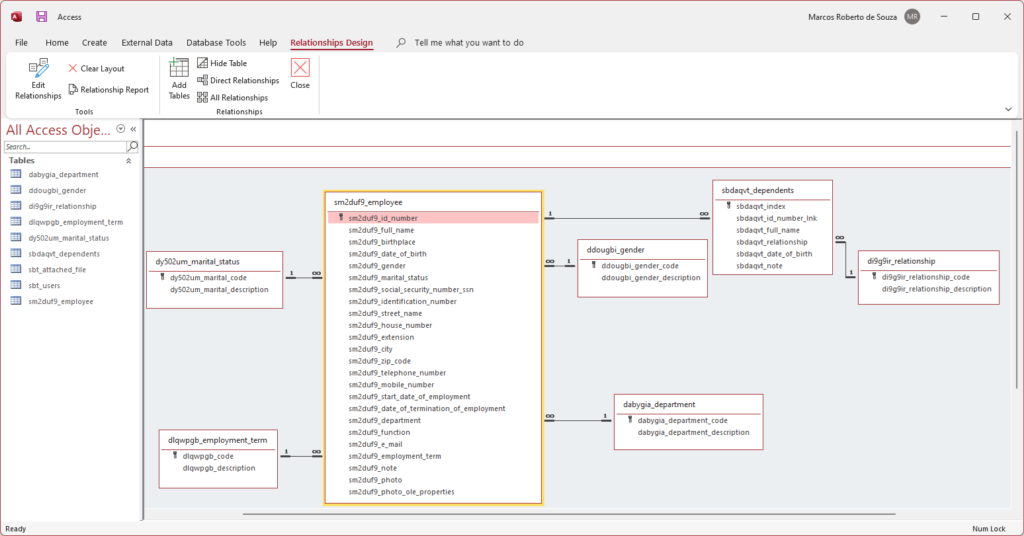
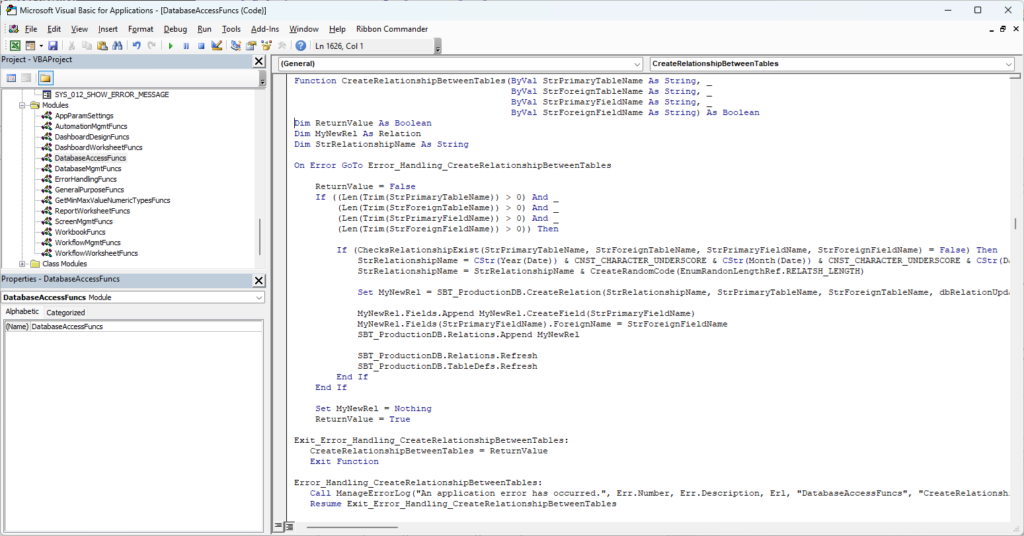
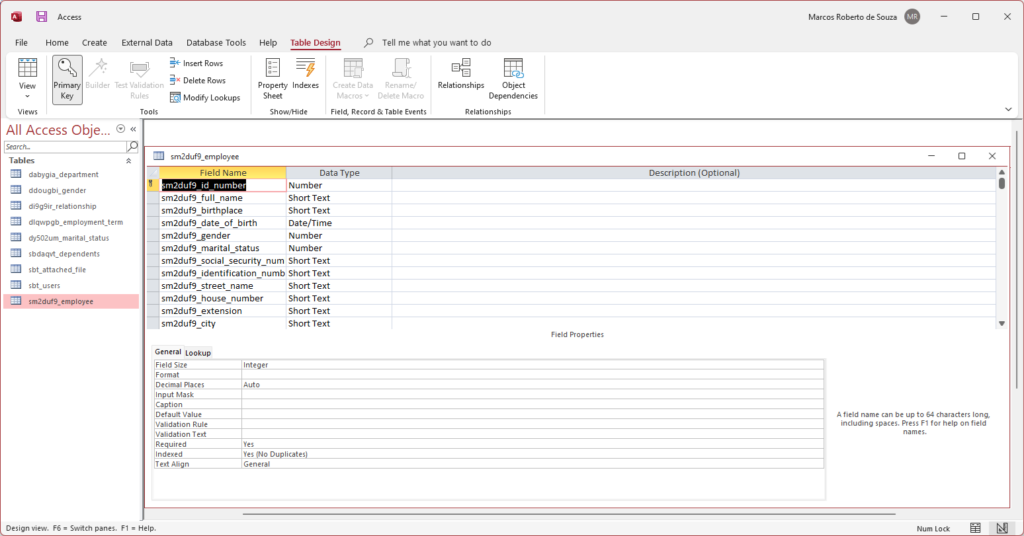
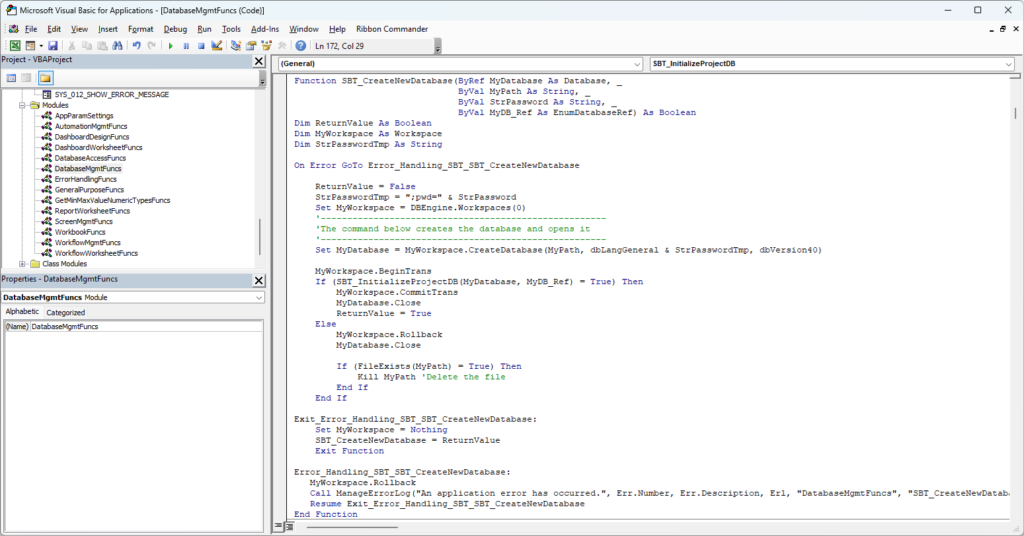
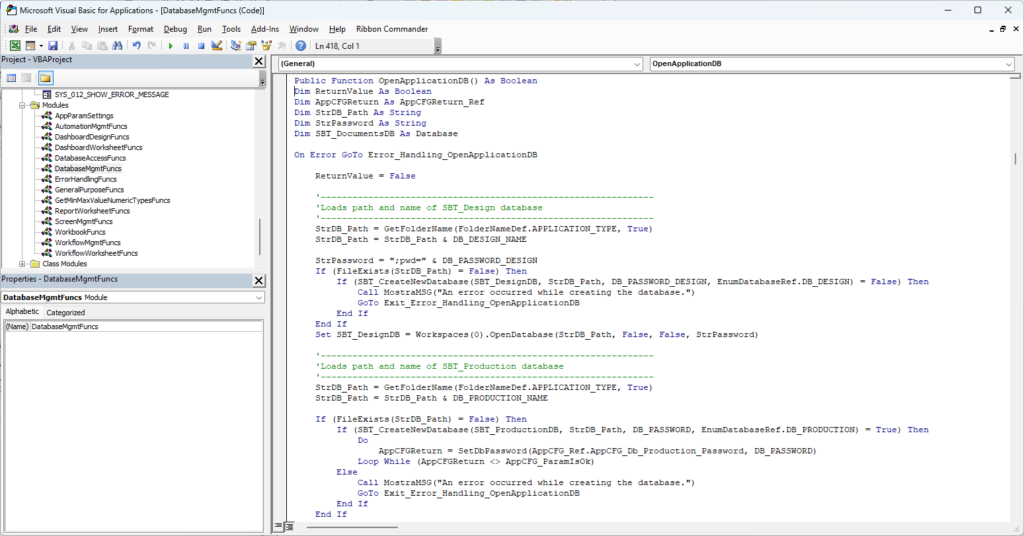
Learn how to create and connect Access databases directly from Excel. See how to manage tables, run SQL queries, and define relationships between datasets — all from VBA.
🧩 Dynamic UserForms
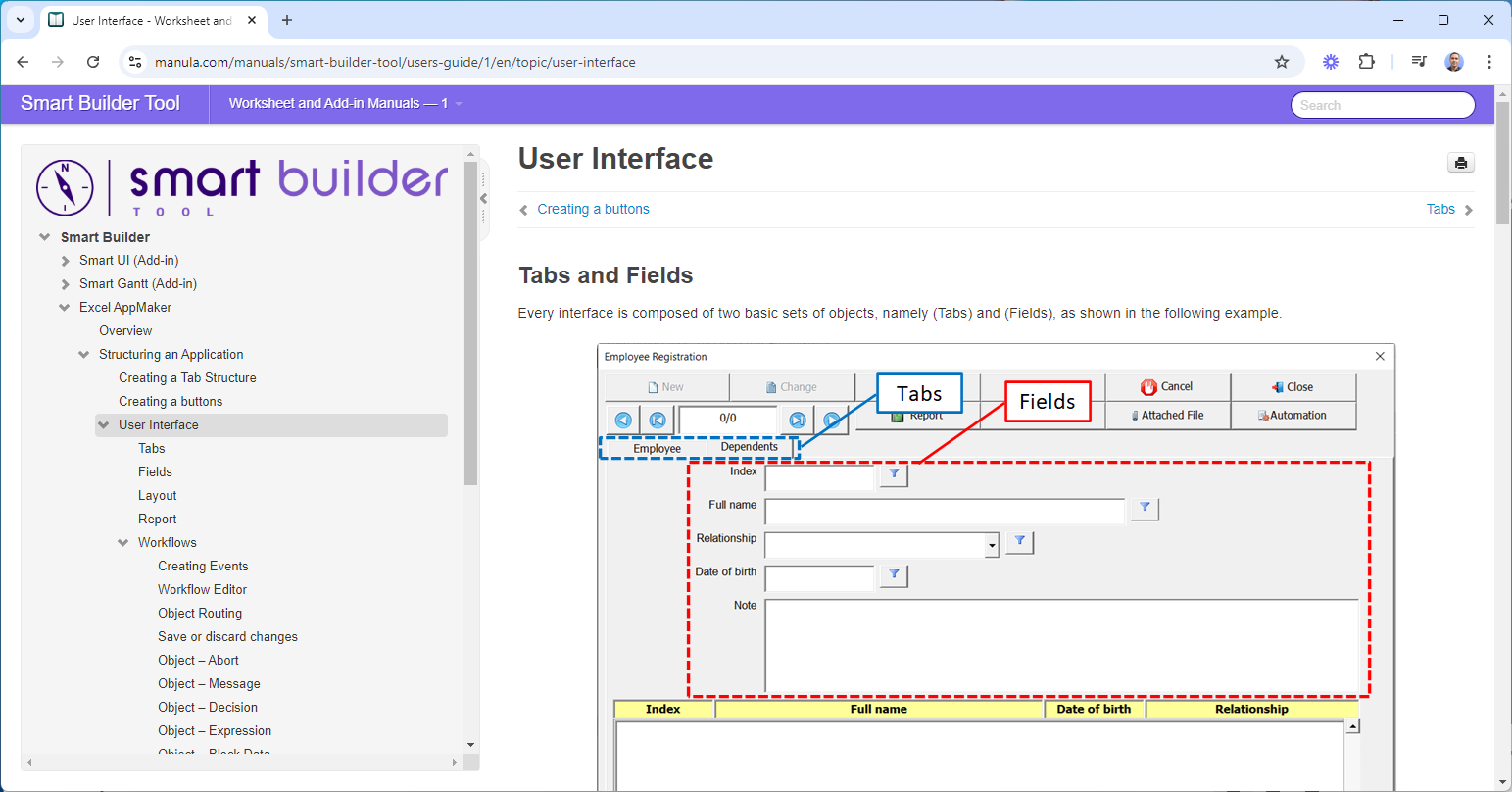
Master how to create and manage form elements at runtime — including textboxes, comboboxes, listboxes, buttons, frames, and tab controls — complete with fully functional event handling.
🗂️ File and System Interaction
Explore how to generate folders, read/write files, and export data between workbooks. These skills expand your ability to automate beyond the Excel interface.
🛠️ Robust Error Handling
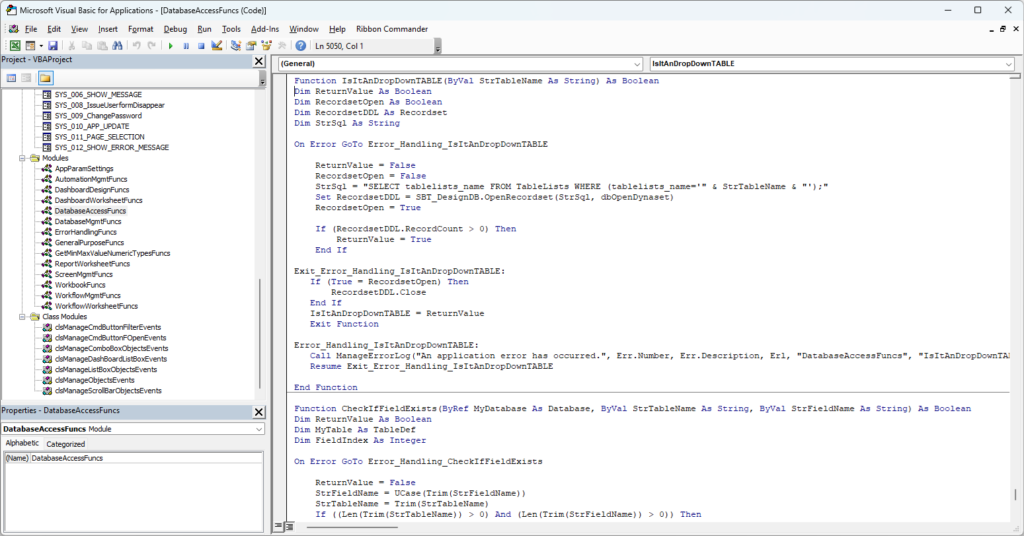
Understand how to catch and display runtime errors in detail — including the function name and line number — helping you debug faster and more effectively.
⚡ Performance Optimization
Learn how to optimize data loading from large databases. See how smart techniques can significantly reduce load times and improve the user experience.
📝 Code Versioning and Tracking
Explore practical strategies to track changes and manage different versions of your VBA code — a crucial practice for long-term project maintenance.
Whether you’re looking to build smarter tools or simply learn how real VBA projects are structured and maintained, Excel AppMaker gives you the code, the context, and the clarity to take your skills to the next level.
🗃️ Master Database Integration and SQL with VBA
Unlock the power of database-driven applications in Excel.
One of Excel AppMaker’s standout features is its seamless integration with Microsoft Access databases, demonstrating how Excel can go far beyond spreadsheets to become a full-fledged data management platform.
🔍 What You’ll Learn
• Create and manage Access databases directly from VBA — no external tools required.
• Build and maintain structured tables, define fields, and insert records dynamically.
• Execute advanced SQL queries (SELECT, INSERT, UPDATE, DELETE) within your application.
• Establish table relationships and apply filtering, sorting, and joins — all through code.
• Handle large datasets efficiently, with techniques that ensure performance and reliability.
🎓 Why It Matters
These techniques equip you with real-world skills used in data-driven solutions across industries.
You’ll gain hands-on experience with SQL and VBA, learning how to:
Automate data entry and validation
Perform dynamic data lookups
Build forms that interact directly with your database
Control data flow between Excel and Access seamlessly
Whether you’re managing inventories, building reports, or designing internal tools, Excel AppMaker turns Excel into a powerful data platform — and teaches you exactly how it’s done.
🧩 Build Interactive Forms with Dynamic Controls and Events
Learn how to create fully responsive forms—on demand, with code.
Excel AppMaker demonstrates how to dynamically generate form objects such as TextBoxes, ComboBoxes, ListBoxes, Buttons, Frames, and more using VBA. These objects are created and positioned programmatically, allowing total flexibility in how forms are constructed and adapted to different contexts.
⚙️ What You’ll Master
• Create form objects dynamically based on your data structure or user input
• Customize layout and behavior of controls during runtime
• Handle events like button clicks, data entry, and selection changes in real time
• Update or remove objects as needed, adapting the form to changing requirements
• Build multi-step forms or interfaces that adjust based on user actions
🎯 Why It’s Valuable
This hands-on approach to object creation teaches you how to build custom user interfaces that go far beyond static form design.
You’ll learn to:
Automate the setup of forms based on data
Create scalable interfaces for complex workflows
Implement event-driven behavior for interactive user experiences
Understand how VBA handles runtime object references and memory
Whether you want to enhance automation or create Excel tools with an app-like feel, this feature shows how powerful and flexible VBA can be when building dynamic interfaces.
🛠️ Robust Error Handling and Debugging in VBA
Identify issues faster and fix them with confidence.
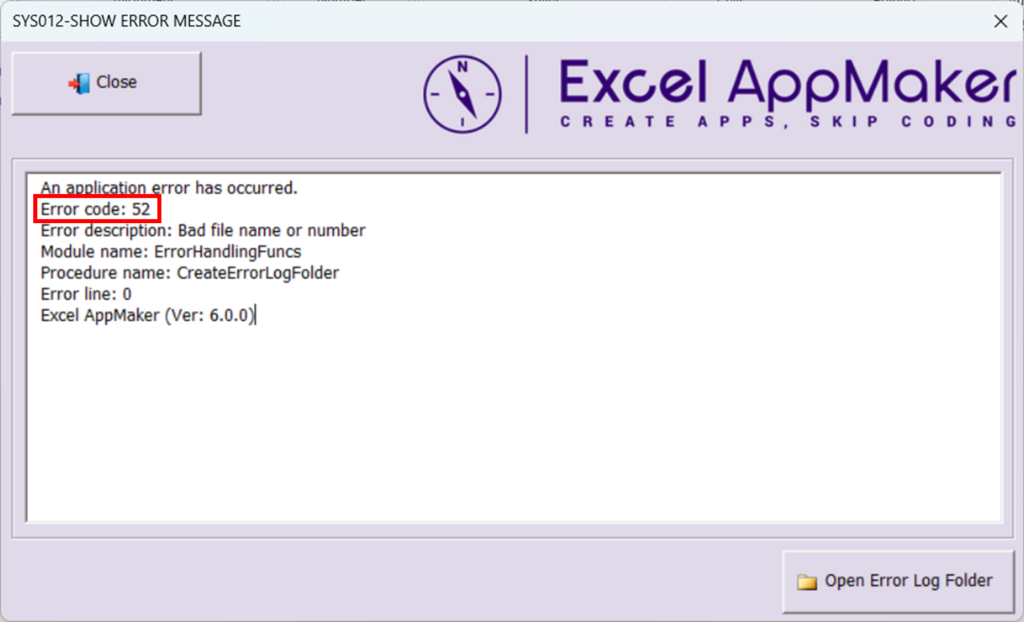
Excel AppMaker showcases advanced error-handling routines that go far beyond simple “MsgBox” alerts. The system provides clear, detailed error messages that include the function name, line number, and error description, making it much easier to detect and resolve issues during development.
🔍 What You’ll Learn
• How to structure centralized error handlers that work across multiple procedures
• How to capture and display detailed error context, including line number and call stack
• Best practices for using Err object properties like Err.Number, Err.Description, and Erl
• How to log errors automatically to a file or table for future analysis
• Techniques to gracefully recover from errors without crashing the application
🎯 Why It Matters
Good error handling separates basic macros from professional-grade applications.
By studying Excel AppMaker, you’ll learn to:
Prevent silent failures that can corrupt data or interrupt workflow
Speed up the debugging process by pinpointing exactly where and why errors occur
Create maintainable code that others (or your future self) can understand and support
Improve the user experience by catching and reporting errors in a clear, non-disruptive way
Whether you’re just starting with VBA or building complex solutions, mastering these techniques will make your applications more reliable, user-friendly, and professional.
🧩 Code Versioning and Change Tracking
Maintain structure and consistency as your VBA projects evolve.
Excel AppMaker includes a dedicated form that allows you to export all VBA modules—standard modules, class modules, and UserForms—to individual text files. This enables you to integrate your code with external version control systems such as Git or Bitbucket, making it possible to track precise changes in the source code over time.
🔧 What the Tool Does
📤 Exports all VBA modules to plain text files
The built-in form automatically generates.txtfiles for each code component in your project. These files can be easily added to any version control system.🧭 Enables meaningful version tracking
Unlike tracking only the Excel file, which would show generic file changes, using exported text files allows tools like Git or Bitbucket to show exactly which lines of code were added, modified, or deleted.🧠 Empowers structured development workflows
While AppMaker doesn’t teach version control tools directly, it provides the necessary export functionality to help you implement them effectively.
📝 How to Use It
After making changes to your project, use the AppMaker export form to generate the latest versions of your VBA modules as
.txtfiles.Add these text files to your version control repository (e.g., Git).
Commit changes regularly to maintain a full history of your code evolution.
Compare versions and review changes using the diff tools provided by your version control system.
💡 Why It Matters
Tracking code changes across versions is essential for maintaining quality and reliability in VBA projects—especially as they grow. With Excel AppMaker, you’ll learn how to:
Organize and document changes efficiently
Avoid losing or overwriting work
Understand how each update impacts your project
Adopt professional-level development habits—right inside Excel
By combining Excel AppMaker’s export tool with your own version control system, you gain full visibility into your code history and open the door to cleaner, safer, and more scalable development.
📘 Comprehensive Online Manual: Configure with Confidence
Master every aspect of Excel AppMaker with step-by-step guidance.
Excel AppMaker includes a detailed online manual designed to help users—regardless of their technical background—get the most out of the tool. From creating interfaces and workflows to generating reports and dashboards, the manual walks you through each process with clarity and precision.
🧩 What You’ll Learn
How to create professional data entry interfaces
How to configure automated workflows
How to build dashboards and custom reports
How to structure your data for smooth integration
The manual is purely focused on practical configuration, avoiding complex programming concepts. Its visual and operational approach allows anyone to start using the application effectively—no coding required.
🎓 Ideal for Learning VBA, Too
Even though the manual doesn’t dive into the source code, it offers a solid foundation for understanding how the application works. This operational knowledge is especially useful for those interested in exploring the open-source VBA code behind each feature.
By learning how to configure the tool, users naturally develop a better grasp of how the underlying VBA logic is applied—making this manual a valuable learning resource for aspiring developers and advanced users alike.
✅ Key Benefits
Accessible language for beginners
Logical structure that mirrors how the tool is used
Real examples that reinforce learning
Indirect support for those exploring and modifying the VBA code
Whether you’re here to build smart solutions or to study how Excel can be turned into a powerful application platform, the online manual will guide you every step of the way.
Download Excel AppMaker for Free
This application is completely free to download and use. No hidden fees, no subscriptions—just click the button and start exploring Excel AppMaker today!
⚠️ Attention: How to Unblock the File After Download
After downloading the add-in, Windows may block the file for security reasons.
To ensure it works correctly, follow these steps before opening in Excel:
Open the File Manager (Windows Explorer) and go to the Downloads folder — this is where downloaded files are usually saved.
Locate the downloaded ZIP file (e.g.,
Smart UI.ziporSmart Gantt.zip).Right-click the ZIP file and select Extract All to unzip the contents.
After extracting, find the Excel file inside the unzipped folder (e.g.,
.xlamor.xlsmfile).Right-click the Excel file, choose Properties, and under the General tab, check the box Unblock (if available).
Click Apply, then OK.
✅ Now the file is ready to be opened or installed in Excel.
📌 This step is required for the add-in to work properly. If the file remains blocked, Excel may prevent it from running.

📁 Where to Save Excel AppMaker
To ensure Excel AppMaker works correctly, always open the file from a local or network folder.
✅ Compatible Locations
You can place Excel AppMaker in a local directory (e.g.,C:\Excel AppMaker) or in a network folder shared with other users. This allows multiple people to use the application at the same time, making it ideal for collaborative environments.
🚫 Incompatible Locations
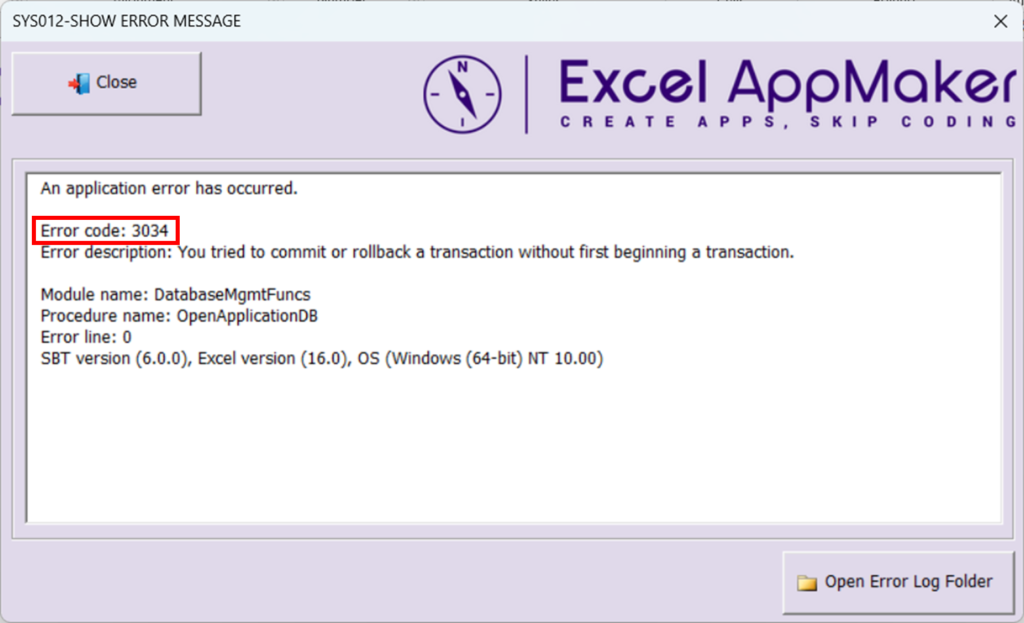
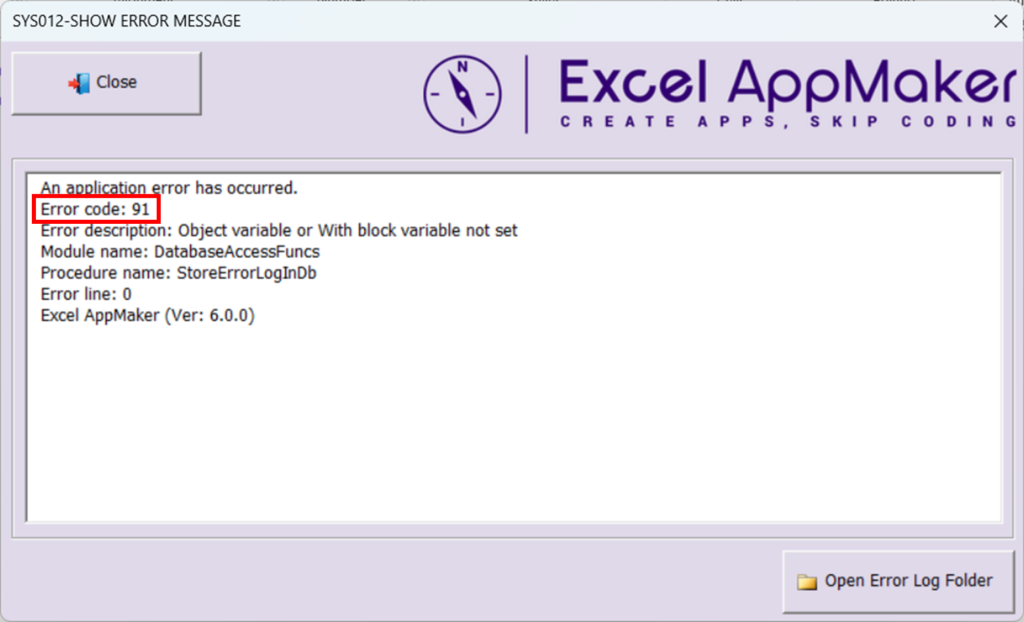
Do not store the file on virtual drives such as Google Drive, OneDrive, or Dropbox. These platforms may prevent the application from creating its required database and log files, leading to errors such as 52, 91, or 3034.
By keeping Excel AppMaker in a suitable location, you’ll avoid interruptions and ensure the application runs smoothly across your team or workspace.
📦 What to Do After Downloading the File?
After clicking the Download button, you’ll receive a compressed file in .zip format. Follow these simple steps to get started:
🔓 Step 1: Unzip the File
Once unzipped, you’ll find four files included:
Excel AppMaker – Readme.docx
A quick-start guide with important instructions, such as how to remove the “Mark of the Web” (unlock the file), enable macros, and install the included add-ons.Excel AppMaker.xlsm
The main Excel file with open-source VBA code. This is the core application, fully editable and ready for customization.Eight_Disciplines_Problem_Solving_8D.mdb
An add-on that implements the 8D methodology—a quality management process used to identify root causes and apply corrective actions.Employees_and_Dependents.mdb
An add-on that creates a form-based interface for registering employees and their dependents.
These sample databases (add-ons) serve as examples of how to build complete, real-world solutions using Excel AppMaker. You can study their structure, customize them, or use them as starting points for your own applications.
🖥️ Minimum System Requirements
Excel: Version 2007 or newer
Operating System: Windows 7 or later
Macros: Must be enabled for the add-in to function properly
💡 Note: The add-in is not compatible with macOS or Excel Online.
💬 Got Questions or Suggestions? Let’s Talk!
If you’re using one of our tools — or just exploring VBA — we’d love to hear from you.
Whether it’s a quick question, a bug you found, or an idea to make things better, your input helps us improve and helps others too.
💡 Have a suggestion? Share it.
❓ Something not working? Ask.
🤔 Stuck on a VBA issue? Let us know.
No question is too small — and no idea is ignored.
Scroll down, leave a comment, and let’s build something better together.
We read every message and always try to reply.


Welcome to the Discussion Area!
We’re excited to have you here and encourage you to engage with us and the community. Whether you have questions about Excel AppMaker, need help with a specific VBA challenge, or simply want to share your thoughts and ideas, this is the place to do it!
Feel free to ask anything—whether it’s about configuring Excel AppMaker, diving deeper into VBA code, or exploring new ways to use VBA in your own projects. We’re here to offer support, share insights, and learn from each other.
Don’t hesitate to jump in. We look forward to hearing from you and growing this community together! 😊
I am planning on using this tool for my personal use case. Is there a dedicated GitHub repo for this to discuss issues and updates/upgrades?
Dear Manthan, thank you for your comment. This discussion area was created for this very purpose. You can leave your comments here. Whenever a new version of the spreadsheet is created, it will be made available through the download button located on this same page.
I just started playing with your tool.
Very nice approach to coding and I’m definitely going to have some questions as I dig deeper into your application.
Welcome Karl, if you have any questions please let us know.
Has anyone managed to connect the database to online, so that more than one person can access the database? Now it is like a standalone database in the PC where it is being used, right?
Hi Jay,
Thank you for your question about running Excel AppMaker in a multi-user scenario.
To let several people open and work with the same Excel AppMaker project at the same time—whether they are in different offices or simply on separate PCs—the files must live in a **shared network folder on an on-premises server** (or a VPN-mapped drive that behaves exactly like a local LAN share). Here’s why and how:
1. **One central location**
The workbook (`*.xlsm`) and all Access databases that AppMaker auto-creates must reside together in that single network folder. When each user opens the spreadsheet from that path, AppMaker points to those databases and handles record locking so updates do not collide.
2. **Real network share vs. cloud-sync folders**
Sync solutions such as OneDrive, Google Drive, Dropbox, etc. are designed for file replication, not live database traffic.
* They introduce file-sync latency and keep partial copies on each PC.
* During normal use AppMaker needs to create, write to, and lock the `*.mdb` files in real time. Cloud folders intercept those operations and you can see error codes like **52**, **91** or **3034** (unable to create log file / invalid database path).
For that reason the application will not function reliably when stored in a “virtual” folder.
3. **User access**
Give every intended user read/write permissions to the network path. As long as Excel can open the workbook directly from that UNC path (e.g., `\\Server\Shared\ExcelAppMaker\…`) they can all connect concurrently.
4. **Performance & stability tips**
– Use a wired LAN or fast, low-latency VPN when working remotely.
– Keep regular backups of the database folder—because all users share the same data source, a single backup strategy protects everyone.
Store the workbook and its databases in a standard network share, not in OneDrive/Google Drive, and everyone with folder access can use Excel AppMaker simultaneously.
Let me know if you need any help setting up the shared folder or have other questions.
Best regards,
Marcos