
📅 Smart Cal – Quick Date Selection in Excel
Smart Cal is a lightweight, free date picker for Excel. With just one click, you can insert dates into your spreadsheet using an intuitive calendar popup.
It’s ideal for users who need a fast and consistent way to input dates, avoiding typing mistakes and format errors.
✨ Key benefits:
📆 Popup Calendar – Choose any date visually
📌 Compact and efficient – Insert dates into any selected cell
🛠️ Open VBA code – Learn how it works or customize it for your needs
Smart Cal is now also included in Smart Tools, but remains available as a standalone download for those who want a simple and focused solution.
📘 A great resource for Excel users and VBA learners alike.
🔵 Try it free and explore the code behind it.
📅 Simplify Date Entry — Fast, Accurate, and Effortless
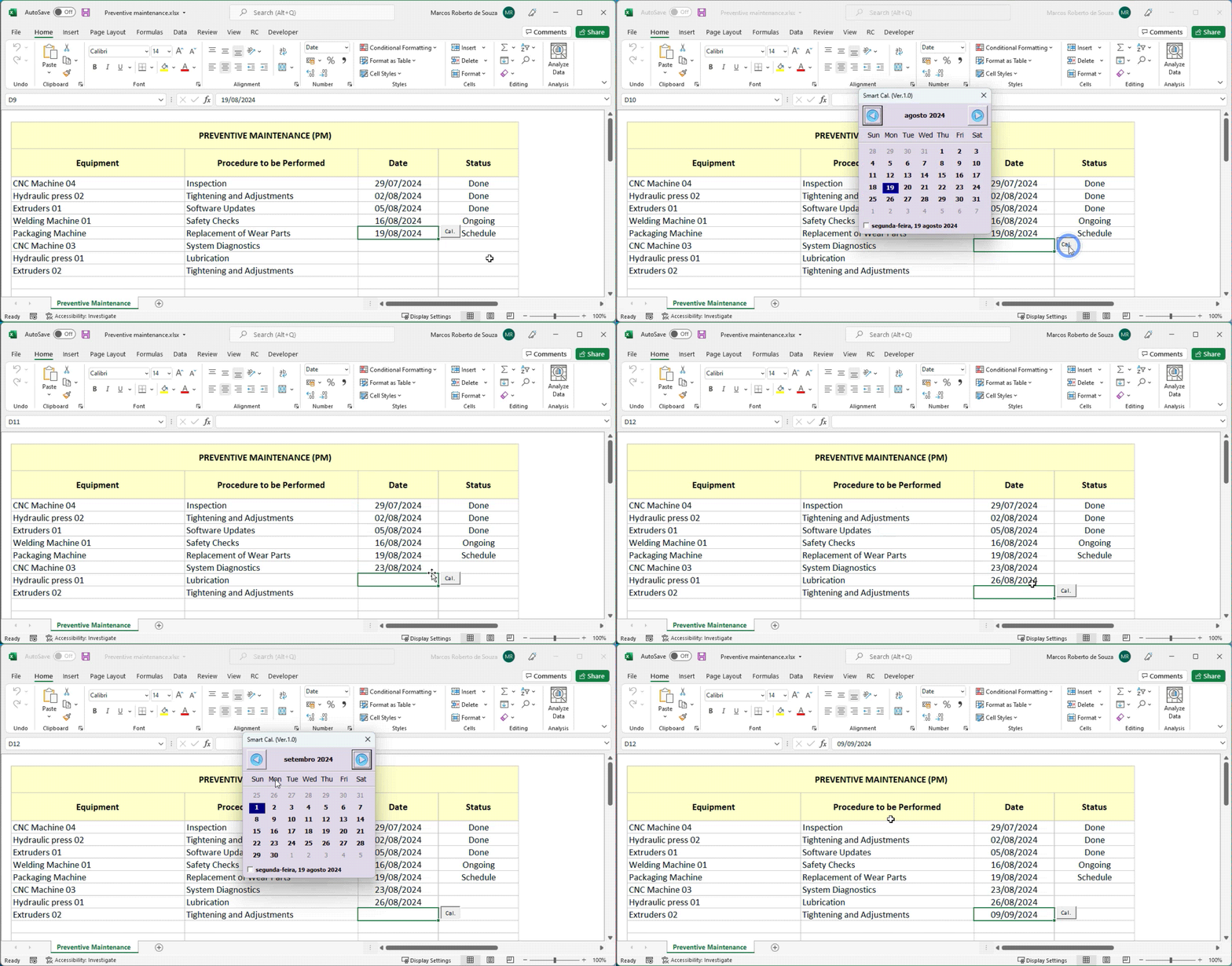
Typing dates manually can slow you down and lead to formatting errors. Smart Cal solves this by placing a calendar icon directly next to any cell that contains a date.
With just one click, a compact popup calendar appears — allowing you to choose the exact date without typing or leaving your spreadsheet.
No more typing mistakes.
No more switching windows to check a calendar.
Just quick, accurate date entry — built right into Excel.
💡 Smart Cal makes date entry faster, cleaner, and more intuitive — perfect for forms, schedules, or any task that involves managing dates.
🔄 Smart Detection — Calendar Only When You Need It
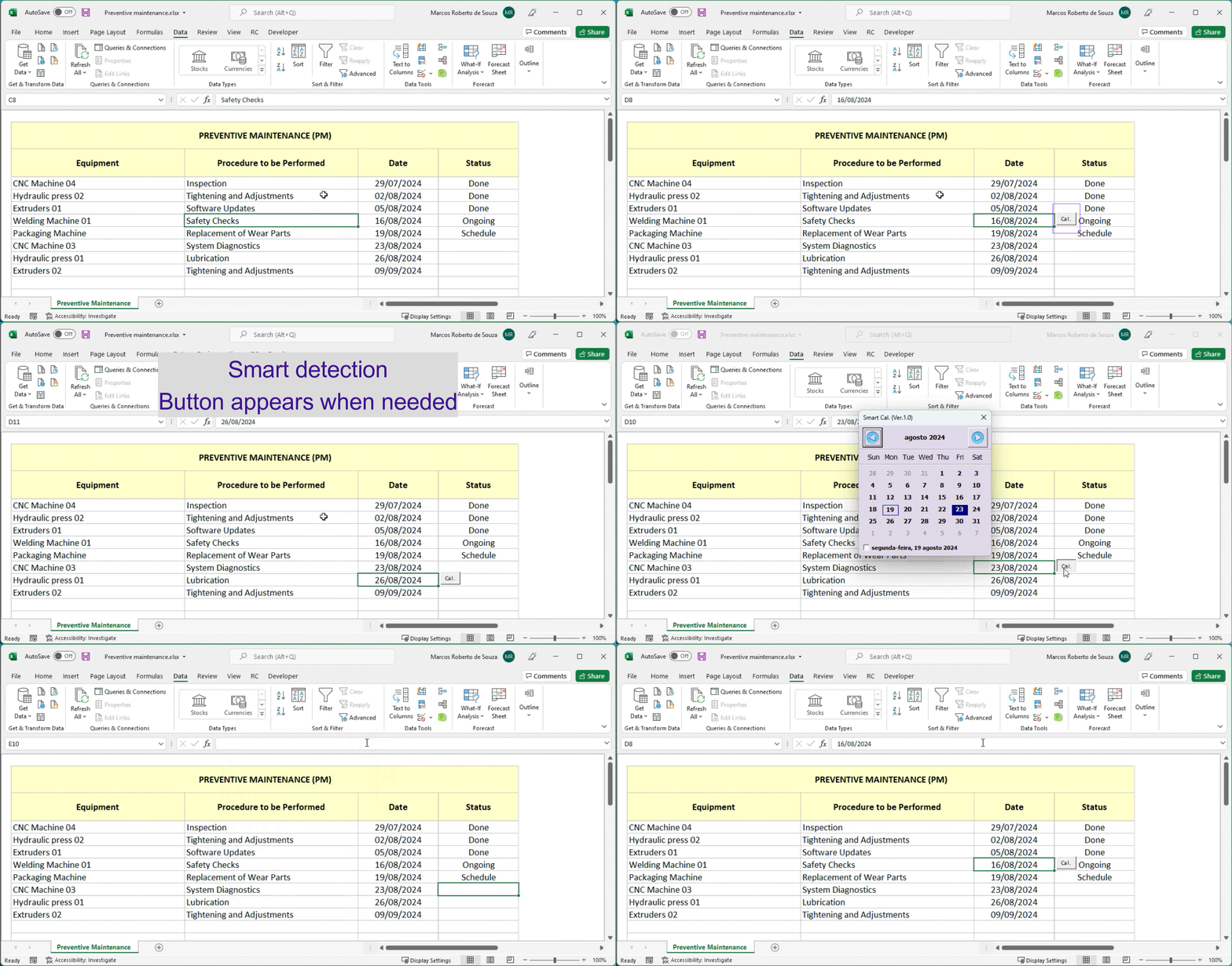
What makes Smart Cal truly smart is its context-aware behavior.
The calendar button appears only when relevant — right next to the selected cell if it contains a date.
Even more helpful:
If you’re working with a list of dates and select an empty cell, Smart Cal still detects nearby values and shows the button — so you can easily insert the next date without breaking your flow.
💡 This makes it especially useful when adding new records or working through sequential data — no distractions, just seamless entry.
🧠 Open-source VBA: Explore, Customize, and Learn by example
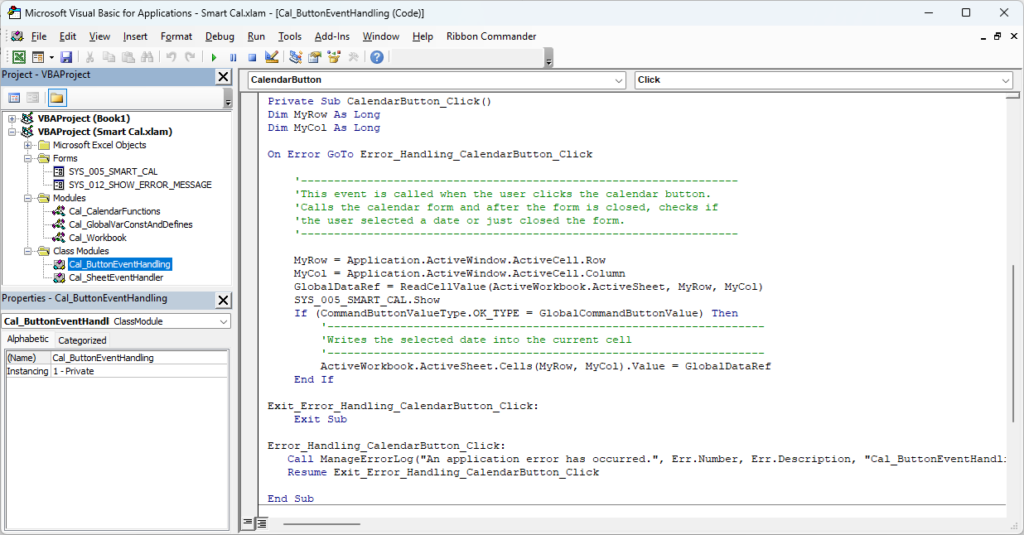
One of the best things about Smart Tools is that its entire VBA code is open and easy to explore.
Whether you’re a beginner or an advanced user, you can dive into real, working VBA code to understand how each feature is built.
💡 Learn how to manipulate forms and controls
📁 Understand modular code organization
⚙️ See how real-world automation works in Excel
Smart Tools is 100% free, and it’s not just a utility — it’s also a learning tool.
🔵 Download it now to improve your workflow — and expand your VBA knowledge.
⚙️ Key Features
📅 One-Click Date Entry
Instantly adds a calendar button next to any cell containing a date. Click to open a popup calendar and select your date in seconds.
🧠 Smart Detection
The button appears only when relevant — either in the selected date cell or in an empty cell next to one. Perfect for working with lists and adding new entries without interruption.
🗓️ Intuitive Calendar View
A clean, user-friendly calendar that clearly distinguishes weekdays from weekends — helping you avoid scheduling mistakes.
💻 Open and Customizable VBA Code
All code is fully open-source. You can explore, learn from, and customize it to fit your own workflows or projects.
⚡ Fast and Simple Installation
Lightweight and easy to set up. The add-in integrates directly into Excel, with no configuration needed.
🎯 Why Use the Smart Cal Add-in?
⏱️ Save Time & Reduce Errors
Skip manual typing and external calendars. With one click, enter accurate dates directly in Excel — faster and error-free.📈 Improve Workflow
Whether scheduling tasks, setting deadlines, or filling out forms, Smart Cal keeps your data clean, reliable, and easy to manage.🧩 Easy to Use, No Learning Curve
A simple, intuitive calendar appears only when needed — perfect for users of all levels, even with minimal Excel experience.💡 Learn and Customize with Open VBA Code
Smart Cal is fully open-source. If you’re curious about how it works, explore the VBA code, learn from it, and even create your own improvements.🎁 100% Free to Use
Enjoy all the features at no cost. Just download and start using it — no sign-up, no limitations.
Smart Cal turns repetitive date entry into a fast, intuitive process.
Whether you’re a casual Excel user or an aspiring VBA developer, it’s a tool that saves time, reduces errors, and opens the door to customization.🔽 Download now and experience the difference.
📦 How to Install a Add-in
Installing a Smart Builder Tool add-in is quick and easy — but it’s essential to follow the correct steps.
In this section, you’ll learn how to properly install the Smart UI add-in, including how to extract, unlock, and activate the file inside Excel.
The video on the right demonstrates the process step by step. Although it uses Smart UI as an example, the same procedure applies to all our tools — Smart Gantt, Smart Tools, and Smart Cal.
⚠️ Important: If the add-in is not installed correctly, it won’t work — and you won’t experience the benefits these tools offer.
👉 Take a minute to watch the video carefully and ensure everything is set up the right way.
📥Download the Add-in for a free. If you have any questions, suggestions or complaints, please send us a message.
Don’t miss out on this handy Excel add-in that’s designed to improve your daily tasks.
⚠️ Attention: How to Unblock the File After Download
After downloading the add-in, Windows may block the file for security reasons.
To ensure it works correctly, follow these steps before opening in Excel:
Open the File Manager (Windows Explorer) and go to the Downloads folder — this is where downloaded files are usually saved.
Locate the downloaded ZIP file (e.g.,
Smart UI.ziporSmart Gantt.zip).Right-click the ZIP file and select Extract All to unzip the contents.
After extracting, find the Excel file inside the unzipped folder (e.g.,
.xlamor.xlsmfile).Right-click the Excel file, choose Properties, and under the General tab, check the box Unblock (if available).
Click Apply, then OK.
✅ Now the file is ready to be opened or installed in Excel.
📌 This step is required for the add-in to work properly. If the file remains blocked, Excel may prevent it from running.

📦 What to Do After Downloading the Add-in?
When you click the download button, you’ll receive a compressed file with the .zip extension. Follow the steps below to install and start using Smart Cal:
🔹 Step 1: Unzip the File
After extracting the contents of the .zip file, you will find the following two files:
Smart Cal – Readme.docx
A step-by-step guide with instructions to help you install the add-in properly.Smart Cal.xlam
The Excel add-in file.
🔹 Step 2: Install the Add-in in Excel
Before installing the add-in, be sure to open and read the Smart Cal – Readme.docx file. It contains important details such as:
How to remove the Mark of the Web (unlock the file if it was downloaded from the internet).
How to install the
.xlamfile and enable macros in Excel to start using Smart Cal.
🖥️ Minimum System Requirements
Excel: Version 2007 or newer
Operating System: Windows 7 or later
Macros: Must be enabled for the add-in to function properly
💡 Note: The add-in is not compatible with macOS or Excel Online.
💬 Got Questions or Suggestions? Let’s Talk!
If you’re using one of our tools — or just exploring VBA — we’d love to hear from you.
Whether it’s a quick question, a bug you found, or an idea to make things better, your input helps us improve and helps others too.
💡 Have a suggestion? Share it.
❓ Something not working? Ask.
🤔 Stuck on a VBA issue? Let us know.
No question is too small — and no idea is ignored.
Scroll down, leave a comment, and let’s build something better together.
We read every message and always try to reply.


Thanks for sharing, it’s helping me a lot.
Welcome to the Discussion Area!
We’re excited to have you here and encourage you to engage with us and the community. Whether you have questions about Smart Cal, need help with a specific VBA challenge, or simply want to share your thoughts and ideas, this is the place to do it!
Feel free to ask anything—whether it’s about configuring Smart Cal, diving deeper into VBA code, or exploring new ways to use VBA in your own projects. We’re here to offer support, share insights, and learn from each other.
Don’t hesitate to jump in. We look forward to hearing from you and growing this community together! 😊
is smartcal functional in excel 365 local install ?
Yes, SmartCal works correctly in a local Excel 365 installation.
Hi,
I followed the steps and cannot get SmartCal to appear in my sheet.
Clicked the yellow warning that appeared.
SmartCal appears in Active Application Add-Ins but it is nowhere to be found.
I am using 64 bit Excel. Will this work?
Hi, once installed, when you select a cell with a valid date, the calendar icon should appear next to the cell.