
📅 Smart Gantt – Create Project Timelines in Excel Without Leaving Your Spreadsheets
🚀 Plan, track, and manage your projects visually — right inside Excel
Smart Gantt is a powerful Excel add-in that lets you build professional Gantt charts directly in your spreadsheet. With just a few clicks, you can transform your data into a dynamic visual timeline — without switching tools or learning complex software.
No external platforms. No steep learning curve. Just Excel — elevated.
✅ Why Smart Gantt Is the Perfect Project Tool for Excel Users
🧩 Work in the files you already use
Smart Gantt integrates directly into Excel. There’s no need to move your project data elsewhere — your schedule, budgets, and task lists stay in one familiar place.
⏱️ Instant results with no training
Just install the add-in, open the ribbon, and click New Gantt. Your project timeline is created instantly on a new sheet, ready to be customized.
🧠 Focused on what matters
Smart Gantt is designed to simplify project planning. No bloated menus or irrelevant options — just intuitive tools to organize tasks, define timelines, and track progress.
💰 Affordable and efficient
Compared to full-scale project management platforms, Smart Gantt delivers core functionality at a fraction of the cost — perfect for individuals, small teams, or businesses managing projects in Excel.
🛠️ Tools You Can Count On

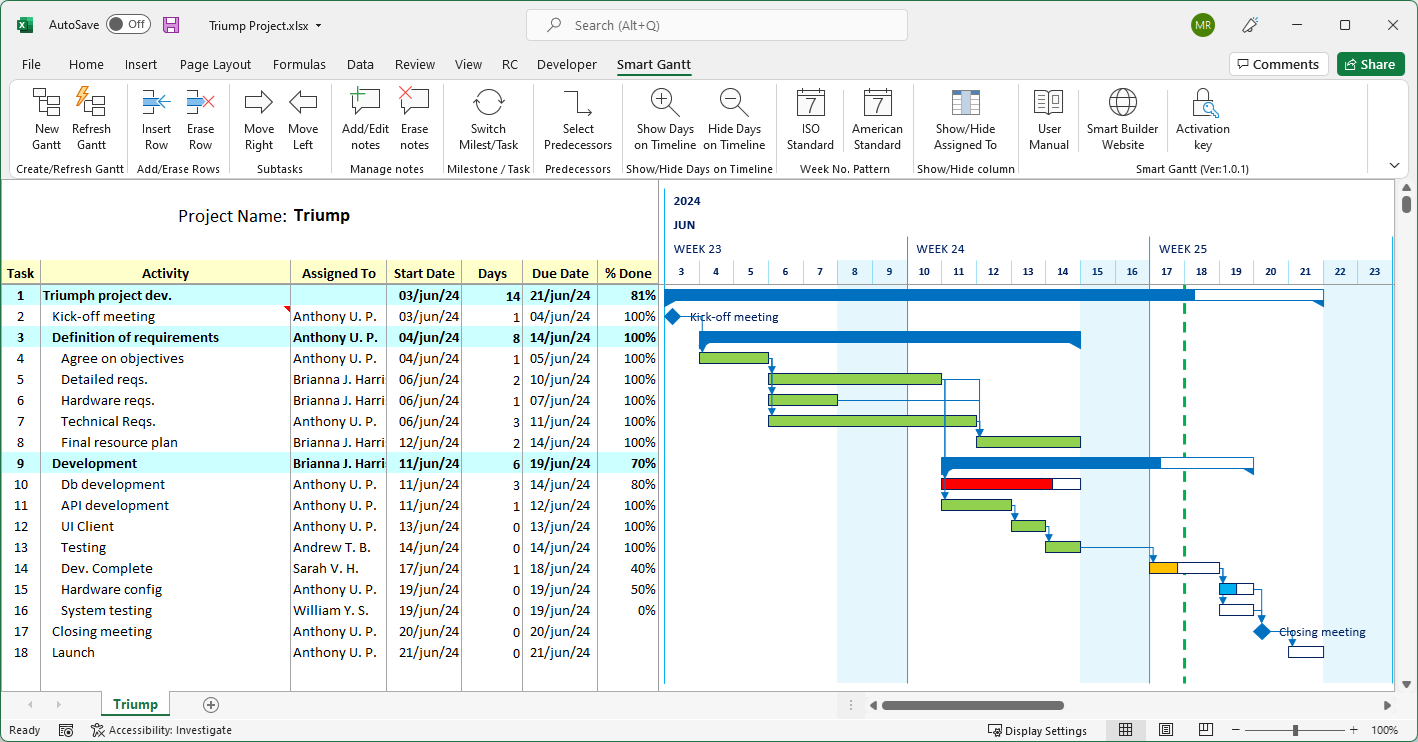
Smart Gantt includes all the essential tools you need to build and maintain project timelines quickly and effectively:
| 🗂️ New Gantt | Instantly creates a new Gantt chart in your spreadsheet. If your sheet already contains data, it opens a new tab with the ideal layout for task planning. |
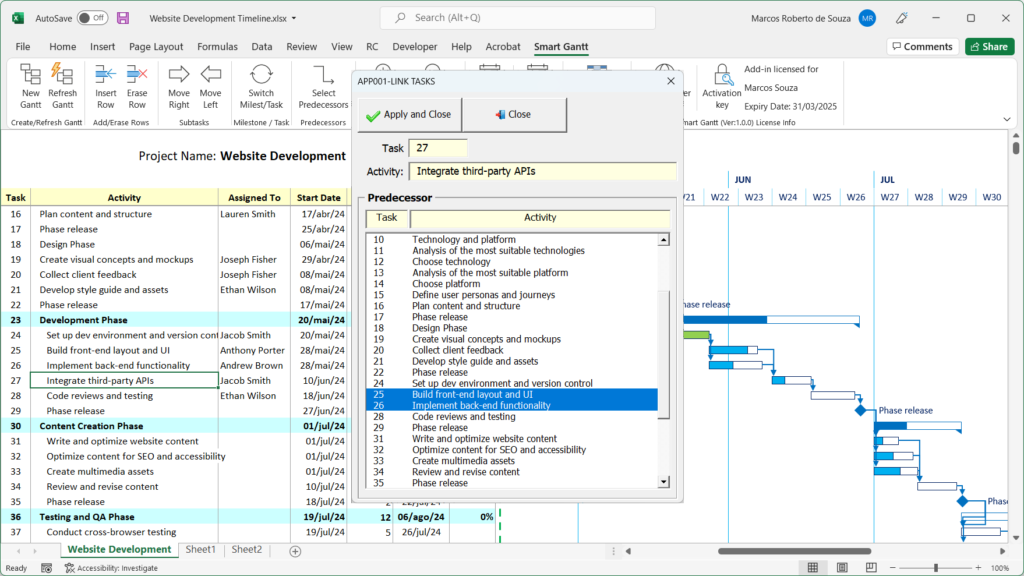
| 🔁 Refresh Gantt | Updates the timeline visuals, including today’s marker line, progress bars, and dependencies. |
| ➕ / ➖ Insert / Erase Row | Add or remove tasks quickly with a single click. |
| ➡️ / ⬅️ Move Right / Move Left | Easily organize tasks into hierarchies by promoting or demoting them as subtasks. |
| 💬 Add / Edit Notes | Attach important details to tasks using the notes feature. |
| 🔄 Switch Milestone / Task | Toggle between milestone and task view. Tasks are shown as bars; milestones as diamonds. |
| 🔗 Select Predecessors | Link tasks to define dependencies. The chart adjusts automatically to reflect the correct order. |
| 📅 Date Method | Choose whether to calculate task durations using calendar days or business days. |
| 🗓️ Date Format | Customize the date display to fit your region or preference (e.g., MM/DD/YY). |
| 🔍 Show / Hide Days on Timeline | Toggle between detailed daily views or simplified weekly views for long-term planning. |
| 📆 ISO / American Standard | Choose your preferred week numbering system. |
| 👤 Show / Hide “Assigned to” | Maximize timeline space by hiding the “Assigned to” column when not needed. |
✨What is a Gantt Chart?
A Gantt chart is one of the most effective ways to visualize and manage project timelines. It shows:
✔️ Start and end dates
✔️ Task durations
✔️ Overlapping tasks
✔️ Dependencies and order
✔️ Overall project progress
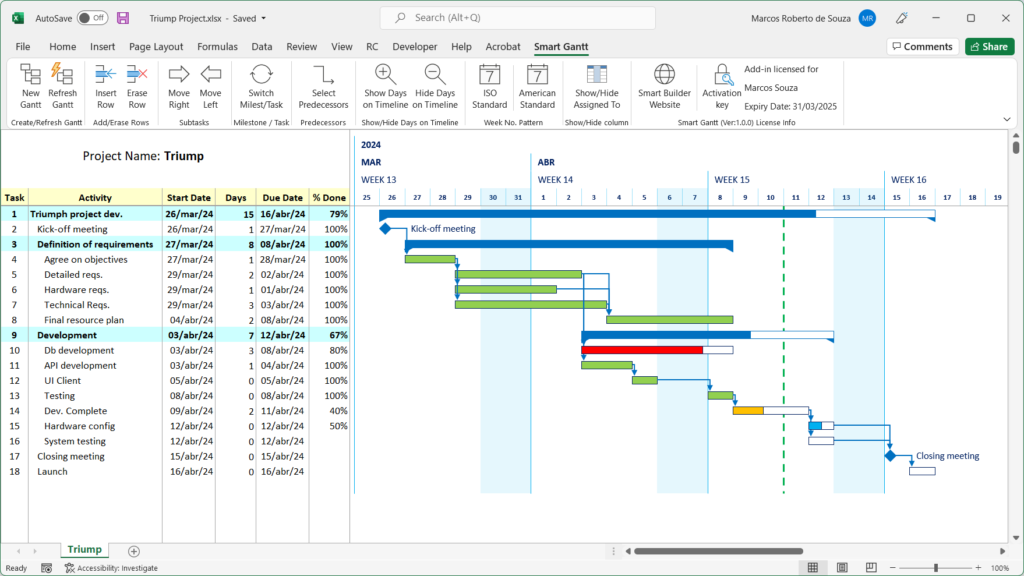
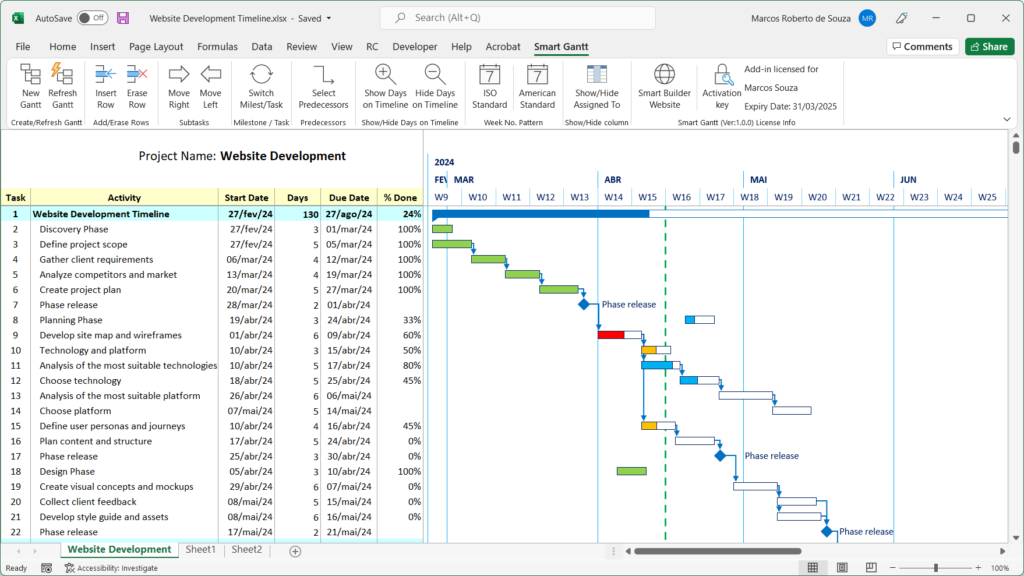
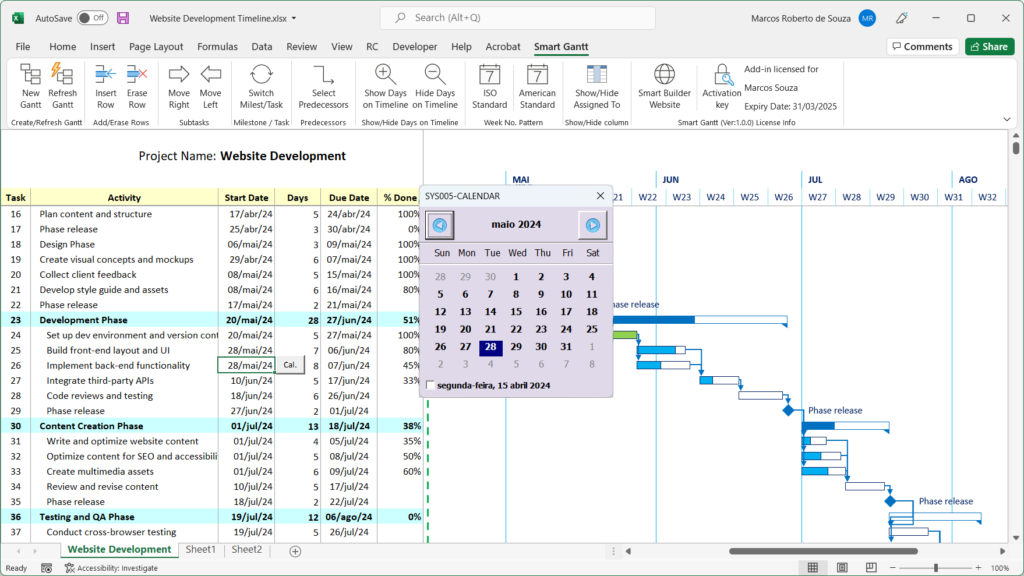
Each task appears as a horizontal bar across a timeline. You get a complete visual map of your schedule — making it easy to track progress, spot delays, and stay on top of every detail.
Smart Gantt brings this power into Excel — no need for extra tools or manual formatting.
🎯Why Choose Smart Gantt?
✅ Create and manage Gantt charts without leaving Excel
Smart Gantt works right where your project data already lives. It’s the ideal solution for professionals who plan budgets, assign resources, and track deadlines in Excel.
✅ Start instantly — no setup required
Click New Gantt to generate a fully formatted chart in seconds. All tools are located in the Smart Gantt tab on the ribbon.
✅ Customize your timeline with ease
Insert tasks, define dependencies, adjust durations, and mark milestones — Smart Gantt makes it all fast and intuitive.
✅ Stay focused on the essentials
We’ve removed the clutter. You’ll find only the tools that matter: tasks, timelines, dependencies, and progress. That’s it.
✅ Work smarter, not harder
Whether you’re managing a personal project or leading a team, Smart Gantt helps you stay organized and efficient without extra software costs or complexity.
👉 A Smarter Way to Track Projects in Excel
If you’re already using Excel to manage project data — deadlines, budgets, task lists — then Smart Gantt is the missing piece.
With one click, you can generate an interactive Gantt chart directly in your workbook, link it to your data, and start tracking real progress with clarity and precision.
📌 Ready to elevate your project planning?
Try Smart Gantt today and experience the easiest way to manage timelines — all within Excel.
📦 How to Install a Add-in
Installing a Smart Builder Tool add-in is quick and easy — but it’s essential to follow the correct steps.
In this section, you’ll learn how to properly install the Smart UI add-in, including how to extract, unlock, and activate the file inside Excel.
The video on the right demonstrates the process step by step. Although it uses Smart UI as an example, the same procedure applies to all our tools — Smart Gantt, Smart Tools, and Smart Cal.
⚠️ Important: If the add-in is not installed correctly, it won’t work — and you won’t experience the benefits these tools offer.
👉 Take a minute to watch the video carefully and ensure everything is set up the right way.
📘Want to Know More? Access the Manual On-line
📥Download the Add-in for a free 30-day trial and make sure it meets your needs. If you have any questions, suggestions or complaints, please send us a message.
After the free trial, if you liked it, purchase a license and continue using the Add-in.
⚠️ Attention: How to Unblock the File After Download
After downloading the add-in, Windows may block the file for security reasons.
To ensure it works correctly, follow these steps before opening in Excel:
Open the File Manager (Windows Explorer) and go to the Downloads folder — this is where downloaded files are usually saved.
Locate the downloaded ZIP file (e.g.,
Smart UI.ziporSmart Gantt.zip).Right-click the ZIP file and select Extract All to unzip the contents.
After extracting, find the Excel file inside the unzipped folder (e.g.,
.xlamor.xlsmfile).Right-click the Excel file, choose Properties, and under the General tab, check the box Unblock (if available).
Click Apply, then OK.
✅ Now the file is ready to be opened or installed in Excel.
📌 This step is required for the add-in to work properly. If the file remains blocked, Excel may prevent it from running.

✨ What to Do After Downloading Smart Gantt
After clicking the download button, you’ll receive a .zip file.
Follow these quick steps to get started:
📦 Step 1: Unzip the File
Once extracted, you’ll find three files:
Smart Gantt – Readme.docx
A helpful guide with step-by-step instructions for proper installation.Smart Gantt 2007.xlam
Add-in version for Excel 2007 or earlier.Smart Gantt 2010+.xlam
Recommended version for Excel 2010 and newer.
🛠️ Step 2: Install the Add-in in Excel
Before using the add-in, open the Readme.docx file. It includes:
How to unlock the file (required for Excel to run it properly)
How to select the correct version based on your Excel
Detailed instructions to install and activate the add-in
⚠️ If the file is not unlocked after download, Excel may block it from functioning.
🧪 Step 3: Explore the Full Features – Free for 30 Days
Once installed, you can use all Smart Gantt features for 30 days — no limitations.
Create Gantt charts, track projects, and evaluate whether the tool fits your workflow.
If you enjoy the experience and want to continue using the add-in after the trial, simply click Buy a License Key to activate it.
🖥️ Minimum System Requirements
Excel: Version 2007 or newer
Operating System: Windows 7 or later
Macros: Must be enabled for the add-in to function properly
💡 Note: The add-in is not compatible with macOS or Excel Online.
Get your license
How the License Works
🔑 Activation: After purchasing, you’ll receive a license key by email. If you’ve already downloaded Smart Gantt, simply enter the key to activate it. If not, use the “Download and Try Smart Gantt” button to get the file.
💻 Usage: The same license can be used on multiple computers.
🧩 Add-on Packs (optional): Sold separately and do not expire. They work with both Annual and Lifetime licenses. If an Annual license expires, your packs remain linked to your account and will work again as soon as you renew or upgrade to Lifetime.
⚙️ Compatibility: The lifetime license works with Smart Gantt version 1.0.3 or later.
⚠️ Important: The license key you are purchasing is valid only for the Smart Gantt add-in. Smart Gantt and Smart UI are separate products and require separate licenses.
Paid License – Annual
...
✅ Plan and track projects directly in Excel
✅ Create Gantt charts in just a few clicks
✅ Update task dates quickly and intuitively
✅ Keep projects on schedule with clarity
Annual license
Use period: 1 year (renewable)
Updates: All new versions, enhancements, and bug fixes released during your active year are included. Renew to keep receiving updates and to maintain full functionality.
Add-on Packs (optional): One-time purchase, no expiration. Packs remain yours permanently and work whenever your Smart UI license is active (annual or lifetime).
Paid License – Lifetime
...
✅ Plan and track projects directly in Excel
✅ Create Gantt charts in just a few clicks
✅ Update task dates quickly and intuitively
✅ Keep projects on schedule with clarity
Lifetime license
Use period: Forever
Updates: Includes all future versions, enhancements, and bug fixes at no additional cost. Pay once and always stay on the latest version.
Add-on Packs (optional): One-time purchase, no expiration. Add advanced features/templates whenever you like.
💬 Got Questions or Suggestions? Let’s Talk!
If you’re using one of our tools — or just exploring VBA — we’d love to hear from you.
Whether it’s a quick question, a bug you found, or an idea to make things better, your input helps us improve and helps others too.
💡 Have a suggestion? Share it.
❓ Something not working? Ask.
🤔 Stuck on a VBA issue? Let us know.
No question is too small — and no idea is ignored.
Scroll down, leave a comment, and let’s build something better together.
We read every message and always try to reply.

